“Did anyone log Tuesday’s client call?” “I think so. Check the sheet.”
It’s Monday morning at a 25-person services firm, and two deadlines are reading the same spreadsheet. Payroll needs hours worked by Wednesday. The client invoice needs billable hours by Friday. The sheet has three tabs, two versions, and a row someone typed from memory. Half the team uses a free time tracking app, and the other half doesn’t use anything.
Time tracking software for small business fixes that Monday, as long as you pick the kind that matches how you make money. Below, you’ll see how payroll tracking differs from client billing, what should happen to tracked time after the timer stops, and how 8 time tracking tools compare for 2027.
What Is Time Tracking Software for Small Business?
Time tracking software for small business is software that records the hours your team works, ties each entry to a client, project, or task, and turns that tracked time into timesheets, payroll data, and invoices.
Each entry holds who worked, when, for how long, on which project and task, and whether the time is billable. It collects them through timers, typed entries, or a calendar, then routes them to approval and rolls them into reports. Team members see their own timesheets. Managers see their team’s time and approve it. The owner or finance lead sees hours worked for payroll, billable hours for invoicing, and how much time each client really takes.
The best setups for small businesses capture time once and use it everywhere. Nobody retypes hours into a payroll form, an invoice, or an accounting file.
Payroll Time Tracking vs Client Billing Time Tracking
Search for time tracking software for small business and you’ll find two kinds of products in the same results. They solve different problems, so it’s worth knowing which one you need before you compare prices.
- Payroll and attendance tracking answers one question: how many hours did each person work, and what do we owe them? This is what most employee time tracking software for small business is built for. Staff clock in and out, the system counts breaks and overtime, and the totals go to payroll. Attendance, PTO, employee scheduling, GPS checks, and shared kiosks belong here. Vendors often sell this category as workforce management.
- Project and billing tracking answers a different question: which client and project did each hour go to, and what can we bill for it? Here, time is logged against projects and tasks, marked billable or non-billable, priced at the right rate, and turned into invoices. Approvals matter more than geofences. The data ends up in accounting as well as payroll.
| Payroll and attendance | Project and billing tracking | |
| Main question | How long did each person work? | Which client does each hour belong to? |
| Typical users | Hourly staff, shift teams, field crews | Consultants, IT staff, engineers, agencies |
| Must-have features | Clock-in times, breaks, overtime rules, PTO, employee scheduling | Project and task tracking, billable flag, rates, approvals, invoicing |
| Where the data goes | Payroll provider | Invoices, project reports, and accounting |
| Typical tools | Time clock apps and workforce management platforms | Time tracking apps with invoicing, and PSA platforms |
Plenty of small businesses need a bit of both. A firm with salaried consultants still needs accurate timesheets for overtime, and a field team still bills clients. Pick the tool for the job that carries your revenue, then check that it covers the other job well enough. If you bill clients for the hours your people put in, the rest of this guide is written for you.
Time Tracking Features Small Businesses Actually Use
Most products list dozens of time tracking features. These are the ones that decide whether your team keeps logging time after the first month.
Timers, Manual Entry, and Automated Timesheets
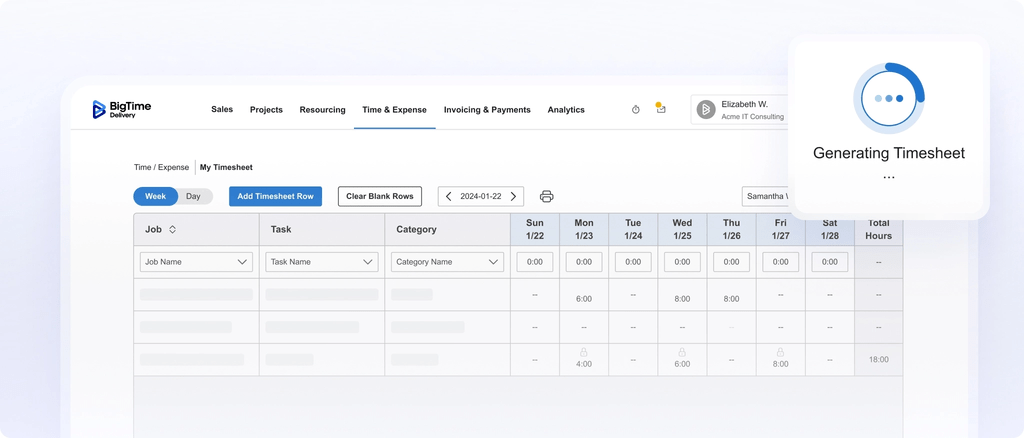
A timer is the easiest way to log time as people move between different tasks. Typing time in by hand covers the call that ran long or the hour someone forgot to start. Automated timesheets fill in the week from tracked time, so people review and submit instead of starting from a blank grid. Look for a way to create time entries in a few clicks and fix them later without a support ticket.
Mobile App, Web App, and Desktop Access
Your team won’t log time if the tool sits in one place. A web app covers office work, a desktop app handles focused work, and a mobile app catches site visits and travel. Remote teams depend on all three. Check that the mobile app supports the same projects and tasks as the web version.
Calendars and Other Integrations
Meetings are where untracked hours hide. A calendar integration lets people turn calendar events into time entries, so a 45-minute client call doesn’t vanish. Integrations with other tools, such as project management apps, payroll, and projects accounting, matter just as much. The fewer places someone copies data by hand, the more accurate your timesheets get.
Approvals Before Payroll and Billing
Approval is the step between “someone logged it” and “we can bill it or pay it.” A manager reviews the week, checks the billable flag, and locks the entries. Several vendors keep approvals for their higher paid plans, so check the tier before you buy.
Billable Rates and Invoicing
If you invoice clients, the tool has to know what each hour is worth. That means rates by person, role, client, or project, plus a clear billable or non-billable flag on every entry. Without rates, you export hours and do the math in a spreadsheet, which brings back the Monday problem.
Detailed Reporting and Real-Time Reporting
Detailed reporting shows the time spent on each client, project, and person. Real-time reporting shows it while you can still act on it. You should be able to export reports to a spreadsheet or PDF for clients who ask.
Expense Tracking and Project Budgeting
Client projects carry more than hours. Logging expenses in the same place puts receipts, mileage, and travel next to the time they belong to. Project budgeting compares tracked time and costs to the budget, so you see a project going over in week three instead of at the final invoice. Project templates save setup time when you run similar work for several clients.
Are Free Time Tracking Apps Enough for Small Businesses?
For many small businesses, free time tracking apps are the right first step. A free tier replaces paper and spreadsheets, costs nothing, and shows whether your team will log time at all. Several vendors also offer free tools such as timesheet templates and time card calculators. If you only need to know who worked how long, free timesheet software may be all you need.
The limits show up as you grow. Common catches include a five user limit, short report history, no approvals, and invoicing locked behind a paid tier. Some free versions allow unlimited projects but no integrations, so the data can’t reach payroll, accounting, or other apps. Limited free plans also tend to cap clients or projects, which bites the moment you add team members.
Free time tracking apps usually stop fitting when one of these happens:
- A second person needs to approve time before it’s billed or paid
- You bill clients at different rates for different people
- Your bookkeeper asks for invoices in QuickBooks instead of exported files
- Keeping track of project budgets turns into its own spreadsheet
At that point, compare paid plans on the advanced features you actually need. Moving from free timesheet software to a paid tool, or to other tools built for billing, is easier while your team is still small.
From Timesheet to Invoice to QuickBooks: What Happens After You Log Time
Most comparisons stop at the timer. For small businesses that bill clients, the timer is only the first step. Here’s the path your time tracking data should take, and where it usually breaks.
- Approve. A manager approves the week’s time entries. Approved time locks, so nobody changes an hour after it’s billed.
- Price. Each entry picks up the right rate for the person, role, or client. Non-billable time keeps its cost, so you still see what the project really consumed.
- Invoice. The invoice is built from approved time under the project’s billing terms: hourly, fixed fee, or a monthly retainer. Notes on each entry become the line descriptions clients read.
- Sync to accounting. The invoice goes to QuickBooks or another ledger through an integration, with no retyping. Payments recorded in accounting come back to the project.
Our guide to PSA time tracking shows how that path works when time, projects, and billing share one system.
The sync step deserves a closer look, because “integrates with QuickBooks” can mean very different things:
| What syncs | Why it matters | Question to ask the vendor |
| Customers and projects | Invoices land on the right customer without duplicate records | Do new clients flow in both directions? |
| Invoices | Billing happens once, in one system | Do invoice lines keep the project and task detail? |
| Payments | You see collected revenue next to billed hours | Do payments recorded in QuickBooks update the project? |
| Hours for payroll | Payroll runs from the same approved time | Does it send approved hours only? |
| Expenses | Billable costs reach the invoice and the books | Are receipts attached when they sync? |
Also check which edition is supported. Some tools connect to QuickBooks Online only, and some sync one way. If your firm runs QuickBooks Desktop, ask before you sign. Our guide to QuickBooks time tracking goes deeper on that setup.
How to Choose Time Tracking Software for Small Businesses
Before you open a pricing page, answer these questions with whoever runs payroll and whoever sends invoices:
- Which job comes first, payroll or client billing? It decides the whole shortlist.
- How many people will log time a year from now? A free tier that fits 4 people won’t fit 12.
- Do you bill by the hour, by fixed fee, or by retainer? Hourly billing needs rates. Fixed fee needs budgets, or you can’t see margin.
- Who approves time, and when? If nobody owns approvals, the tool won’t fix accuracy.
- Which QuickBooks edition do you run, and what has to sync? Ask which records sync, and in which direction.
- What will the paid plans cost for your whole team? Multiply the per-user price by your headcount and add the plan you’ll need once approvals and invoicing matter.
If most of your answers point to client work, choose a tool that connects time to invoices and accounting. If they point to shifts and hourly pay, timesheet software built for payroll or a workforce management tool will serve you better. Small business owners often start with a free timer and move up as the business journey adds clients, approvers, and a bookkeeper who wants clean data. Consulting firms can find a narrower comparison in our guide to time tracking software for consultants, and our broader time tracking software ranking covers the wider market.
How We Evaluated
We compared 8 time tracking tools on six criteria, weighted for small businesses that bill clients for their time:
- Client billing fit: rates, billable flags, approvals, and invoicing
- Accounting integration: QuickBooks support, edition, and sync direction
- Ease of capture: timers, mobile access, calendar integration, and quick edits
- Payroll and attendance support: clock in and clock out, overtime, and PTO
- Cost for a small team: the free plan’s limits and what paid plans add
- Reporting: reports by client and project, plus profitability visibility
Ratings come from G2 and Capterra, and prices come from each vendor’s pricing page. We compared published pricing, review-site sentiment, and documented integrations. Because billing and invoicing carry the most weight, some tools with higher review scores rank lower than tools that connect time to the invoice.
Best Time Tracking Software for Small Business in 2027: Comparison Table
| Tool | Best For | Free Plan | Starting Paid Price (as of Oct 2026) | Invoicing | QuickBooks Sync | G2 / Capterra (Oct 2026) |
| BigTime | Growing professional services firms that bill clients | No | $20 per user/month (Essentials) | Every plan | Two-way, Online and Desktop | 4.4 (1,807) / 4.6 (658) |
| Harvest | Simple time tracking and invoicing | 1 seat, 2 projects | 11perseat/month(9 annual) | Every plan | Online only, one-way invoices and payments | 4.3 (881) / 4.6 (646) |
| QuickBooks Time | Hourly payroll inside QuickBooks | No | $20/month base + $10 per user | None of its own | Online, native (Online required) | 4.5 (1,448) / 4.7 (7,021) |
| TimeCamp | Free plan with unlimited users | Unlimited users and projects | 5.49peruser/month(3.99 annual) | Starter and up | Online, Premium and up | 4.7 (392) / 4.7 (599) |
| Clockify | Low-cost payroll and project tracking | Up to 5 users | 4.99peruser/month(3.99 annual) | Standard and up | Online, time entries, Standard and up | 4.5 (204) / 4.8 (9,258) |
| Paymo | Agencies that want task and project management | 1 user, 2 projects | 9.90/month,1user(5.90 for 3 months) | Every plan | Online, invoices out, payments back | 4.6 (594) / 4.7 (686) |
| My Hours | Easy time tracking with budgets | 5 active users | 5peruser/month(4 annual) | Yes, plan not stated | Customers in, invoices out | 4.6 (267) / 4.8 (986) |
| Everhour | Time tracking inside project tools | Up to 5 seats | $8.50 per seat/month, annual, 5-seat minimum | Team plan | Online, draft invoices, payment status | 4.7 (179) / 4.7 (432) |
Ratings come from G2 and Capterra (review counts in brackets); prices come from vendor pricing pages. Both were checked in October 2026 and change often.
BigTime
Rating: G2 4.4/5, 1,807 reviews · Capterra 4.6/5, 658 reviews
Pros
- Time, expenses, approvals, invoicing, and payments on every plan
- Two-way QuickBooks Online and Desktop integration
- Rates by person, role, and project, with billable and non-billable time on every entry
- Time and materials, fixed fee, and project milestone billing
- Auto-fill, auto-save, and smart lookups speed up daily time entries
Cons
- More setup than a free timer: rates, approval rules, and the QuickBooks connection take planning
- No free plan; pricing starts above budget time tracking apps
- Built for client work, so there’s no GPS, kiosk, or shift scheduling for hourly crews
BigTime is a PSA platform for IT, engineering, and consulting firms that bill clients for every hour. Every hour starts a financial record. Each entry picks up the right rate, passes through approval, and flows into an invoice under the project’s billing terms. The invoice and payment then sync both ways with QuickBooks Online or Desktop, so finance doesn’t retype anything at month-end. QuickBooks keeps the ledger, and BigTime keeps the project-level numbers behind it.
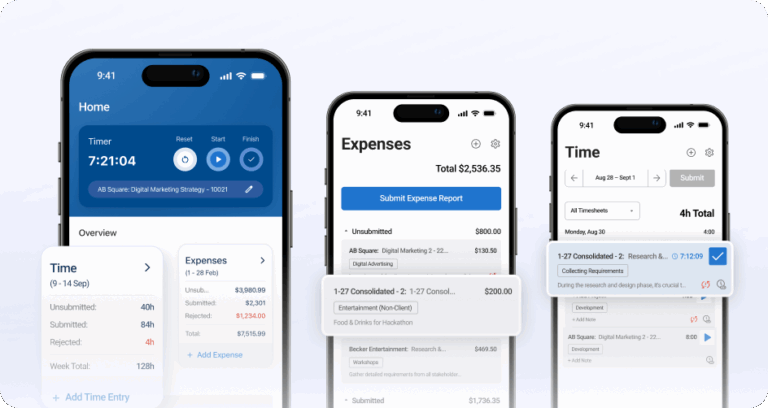
For small businesses that are starting to feel like real firms, that link matters most. You see unbilled time before the invoice run, budget burn while the project is still open, and which clients take more hours than they pay for. Team members log time from the web or the mobile app with one-tap timers. Auto-fill, auto-save, and smart lookups cut the typing, so people keep accurate timesheets without much effort. BigTime projects and tasks can also show up in Google Calendar through its integration.
BigTime is more than a five-person shop needs if all it wants is a timer. Setting up rate tables, approval steps, and the accounting connection takes planning, and the team needs time to adjust. For firms that are hiring, adding clients, or tired of reconciling spreadsheets, that setup is what replaces the month-end cleanup.
Key Features
- Timers, quick edits, and auto-filled timesheets on web and mobile
- Billable and non-billable time with rates by person, role, client, or project
- Timesheet and expense approvals, with multi-level approvals on Premier
- Project invoicing from approved time and expenses, plus online payments
- Two-way QuickBooks Online and Desktop sync, plus HubSpot on every plan
- Project budgeting and custom cost and rate management on Premier
- Real-time reporting on hours, billable work, and project financial health
Pricing
BigTime Essentials starts at $20 per user/month. Every plan includes time tracking, invoicing, expense management, and payments. Advanced, Premier, and Enterprise pricing is available on request. To see how it would work with your projects and your QuickBooks file, book a personalized demo.
Harvest
Rating: G2 4.3/5, 881 reviews · Capterra 4.6/5, 646 reviews.
Pros
- Invoicing on every plan, including the free one
- Clean timer and mobile apps
- Expenses and project budgets sit next to tracked time
- Unlimited seats on paid plans
Cons
- The free plan covers one seat and two projects
- Timesheet approvals only on the Enterprise plan
- QuickBooks Online only, with one-way sync
- Scheduling is a separate product
Harvest is one of the most familiar names in time tracking for agencies, consultants, and other small teams that bill by the hour. A team member starts a timer, adds a note, and the entry is ready to go on an invoice. Invoices are built from tracked time and expenses, and clients can pay online. Project budgets show how much of the estimate is gone. Its user-friendly interface keeps training short. For small businesses that want to stop billing from spreadsheets, it’s an easy first step.
The gaps appear as the team grows. Timesheet approvals are only available on Enterprise, so most small teams invoice time nobody has reviewed. The QuickBooks integration works with QuickBooks Online only and isn’t on the free plan. It copies invoices and, optionally, payments from Harvest to QuickBooks, but edits made in QuickBooks don’t sync back. Cost is also the most common complaint in Capterra reviews. Picture a 20-person firm with two project leads approving time and a bookkeeper on QuickBooks Desktop. It ends up paying for Enterprise and still exporting files at month-end.
Key Features
- Timers on web, desktop, and mobile, plus a Slack extension
- Invoices built from tracked time and expenses
- Online invoice payments
- Project budgets with time and cost tracking
- Reports by client, project, and team member
- QuickBooks Online integration on paid plans
Pricing
Free for 1 seat and 2 projects. Teams costs $11 per seat/month, or $9 billed annually. Enterprise costs $17.50 per seat/month, or $14 billed annually. Enterprise Plus pricing is custom.
QuickBooks Time
Rating: G2 4.5/5, 1,448 reviews · Capterra 4.7/5, 7,021 reviews (listed as TSheets)
Pros
- Built for QuickBooks Online and QuickBooks Payroll
- Mobile app, kiosk, scheduling, and time off on both plans
- Managers approve time from a phone
- Very high review volume
Cons
- Requires a QuickBooks Online subscription
- Monthly base fee on top of per-user pricing
- No invoicing of its own; billing happens in QuickBooks
- Project tracking only on the Elite plan
QuickBooks Time is the natural pick when your main job is payroll. Employees clock in from the mobile app or a shared kiosk, managers approve timesheets on the go, and approved hours flow straight into QuickBooks Payroll. Scheduling and time off are part of both plans. For a field team, a cleaning business, or any company with hourly staff and a QuickBooks file, it’s among the strongest employee time tracking software for small business.
Client work is where it gets thinner. QuickBooks Time doesn’t create invoices. Time goes to QuickBooks Online, and you bill from there, so rates, write-downs, and invoice detail live in a second system. Project tracking, mileage, and timesheet signatures need Time Elite, at a $40 monthly base fee plus $12 per user. Geofencing and GPS mileage are listed only for the Workforce Elite bundle, at $134 a month plus $17 per employee. Intuit’s pages don’t describe QuickBooks Desktop support. A consulting firm that bills fixed fee projects will see hours against a budget, but not the margin on each engagement.
Key Features
- Clock in from mobile, web, or a kiosk
- Timesheet approvals and edits from the mobile app
- Employee scheduling by job or shift
- Time off tracking
- Budgeted vs actual hours by project (Elite)
- Hours sync to QuickBooks Online for payroll and invoicing
Pricing
No free plan. Time Premium costs $20/month base plus $10 per user/month. Time Elite costs $40/month base plus $12 per user/month. Both require QuickBooks Online.
TimeCamp
Rating: G2 4.7/5, 392 reviews · Capterra 4.7/5, 599 reviews
Pros
- Free plan with unlimited users and unlimited projects
- Low-cost paid plans with invoicing from Starter
- QuickBooks Online sync of clients, taxes, and rates in both directions
- GPS tracking on every plan
Cons
- Approvals and expenses only on Ultimate
- AI time tracking is billed separately
- No QuickBooks Desktop integration
- Reviewers report glitches and instability
TimeCamp gives small businesses more for free than most tools in this list. The free plan allows unlimited users and projects, so a whole team can start tracking time without a budget conversation. Paid plans stay inexpensive, with invoicing from Starter and attendance tracking alongside project time. TimeCamp also markets an AI time tracker that suggests entries from what people work on. For a growing team that wants one place for project hours and attendance, the entry cost is hard to beat.
The catch is how much sits in the top tier. Approvals, expenses, and screenshot-based employee monitoring are all on Ultimate, at 13.99peruser/month(9.99 billed annually). The QuickBooks integration needs Premium or higher and works with QuickBooks Online only. TimeCamp says plainly that it doesn’t integrate with the desktop app. The AI tracker runs on credits, which TimeCamp estimates at about $6 per user/month. Capterra reviewers also mention bugs. Small businesses that want approved time, invoices, and accounting sync end up on the most expensive plan, plus AI credits.
Key Features
- Automatic and manual time tracking on desktop, web, and mobile
- Attendance tracking and GPS tracking
- Invoicing from tracked time (Starter and up)
- Project budgets (Premium and up)
- QuickBooks Online integration (Premium and up)
- AI time tracker, billed by credits
Pricing
Free for unlimited users and projects. Starter costs $5.49 per user/month ($3.99 billed annually), Premium $9.99 ($6.99), and Ultimate $13.99 ($9.99). Enterprise pricing is available on request.
Clockify
Rating: G2 4.5/5, 204 reviews · Capterra 4.8/5, 9,258 reviews
Pros
- Free plan with unlimited projects
- Some of the lowest paid plans in the category
- Google Calendar and Outlook calendar import
- Kiosk, GPS, scheduling, and time off on paid tiers
Cons
- Approvals, invoicing, and QuickBooks start at Standard
- GPS, scheduling, and expenses need Pro
- QuickBooks Online only, and it sends time entries rather than invoices
- Reviewers mention a cluttered interface and mobile bugs
Clockify is the budget pick that covers both jobs small businesses track time for. Clockify’s free version includes unlimited projects and enough features to replace a spreadsheet. As you add paid tiers, you get a kiosk for shared devices, time off, GPS, and resource management, so it can handle hourly staff and project work in one app. Calendar import from Google Calendar and Outlook helps teams log meetings they’d otherwise forget.
The feature list is wide, but it’s spread across five tiers. Approvals, invoicing, and the QuickBooks integration start on Standard, at $6.99 per user/month ($5.49 annually). GPS, scheduling, and expenses need Pro. The free plan card says up to five users, while the pricing FAQ says you can invite four people, so confirm the limit before you plan around it. The QuickBooks connection works with QuickBooks Online only, sends time entries as time activity, and doesn’t work when QuickBooks payroll is turned on. A firm that bills clients from approved time will still build and reconcile invoices by hand.
Core Features
- Timer, manual time, and calendar import
- Kiosk clock-in (Basic and up)
- Approvals, invoicing, and time off (Standard and up)
- GPS tracking, scheduling, and expenses (Pro)
- Budgets and estimates by project
- QuickBooks Online time sync (Standard and up)
Pricing
Free for up to five users, with unlimited projects. Basic costs $4.99 per seat/month ($3.99 annually), Standard $6.99 ($5.49), Pro $9.99 ($7.99), and Enterprise $14.99 ($11.99).
Paymo
Rating: G2 4.6/5, 594 reviews · Capterra 4.7/5, 686 reviews
Pros
- Task management with list, board, calendar, and Gantt views
- Invoicing on every plan, including free
- QuickBooks Online payments sync back to Paymo
- Workload and scheduling on Pro
Cons
- The free plan is for one user and two projects
- Introductory prices rise after three months
- Approvals and scheduling only on Pro
- Reviewers find the mobile app less polished
Paymo combines project management, time tracking, and billing for small creative and marketing agencies. Tasks carry their own timers, so tracked time lands on the right task without extra steps. Teams can switch between list, board, calendar, and Gantt views, and invoices come straight from tracked time. Even the free plan includes invoicing, which is rare. For a small agency that runs on tasks and bills by the hour, it covers a lot in one place.
Pricing needs a careful read. Paid plans start with a three-month introductory price, then rise. Plus goes from $10.90 to $15.90 per user/month, and Pro goes from $16.90 to $23.90. Approvals, scheduling, and workload planning are all on Pro. The QuickBooks Online integration exports invoices and syncs payments back, but invoice status changes in QuickBooks don’t update Paymo. Paymo is built around task management, so financial reporting stays light. A consulting firm that needs approved time, rates by role, and a clean QuickBooks file will hit those limits quickly.
Core Features
- Task management with list, board, calendar, and Gantt views
- Timers built into each task
- Invoices from tracked time, with recurring invoices on Plus
- Expense tracking (Plus and up)
- Approvals, scheduling, and workload (Pro)
- QuickBooks Online invoice and payment sync
Pricing
Free for 1 user, 2 projects, and 1 client. Solo costs $9.90/month for 1 user ($5.90 for the first 3 months). Plus costs $15.90 per user/month ($10.90 introductory), and Pro $23.90 ($16.90 introductory). Annual billing saves up to 40%.
My Hours
Rating: G2 4.6/5, 267 reviews · Capterra 4.8/5, 986 reviews
Pros
- Free for up to five active users
- Intuitive interface with a short learning curve
- Budgets, budget alerts, and expense tracking
- QuickBooks integration for customers and invoices
Cons
- Approvals and budgets only on Pro
- The pricing page doesn’t say which plan includes invoicing
- Google Calendar only through Zapier
- Reviewers call reporting clunky
My Hours keeps time tracking simple, which is why many small businesses pick it. Its intuitive interface makes daily logging quick on web, desktop, and mobile. Team members track billable and non-billable time across clients and projects, and managers set budgets with alerts before a project runs over. The free plan fits five active users, and paid plans stay low. It’s a good match for a small team that wants clean timesheets without much training.
The limits show up in the finer print. Approvals with an audit log, and project budgets, are on Pro, at 9peruser/month(8 annually). The pricing table lists invoicing, but it doesn’t say which plan includes it. The QuickBooks integration imports customers and sends invoices back, and the edition isn’t stated. Google Calendar works only through Zapier, and G2 reviewers call reporting “a bit clunky.” My Hours suits teams that need hours and budgets. A firm that needs rates by role, billing terms per project, and payment status from QuickBooks will need more.
Core Features
- Timers and typed entries on web, desktop, and mobile
- Billable and non-billable time by client, project, and task
- Budgets and budget alerts (Pro)
- Approval workflow with audit log (Pro)
- Expense tracking
- QuickBooks customer import and invoice transfer
Pricing
Free for up to 5 active users. Basic costs $5 per user/month ($4 billed annually), and Pro costs $9 ($8). Enterprise pricing is custom.
Everhour
Rating: G2 4.7/5, 179 reviews · Capterra 4.7/5, 432 reviews
Pros
- Free for up to five seats
- Timers that work inside project tools such as Trello and Jira
- Approvals, expenses, time off, and budgets on the Team plan
- QuickBooks Online draft invoices with payment status sync
Cons
- The free plan doesn’t include integrations
- Team plan has a five-seat minimum and shows annual pricing only
- The features page mentions an iPhone app only
- AI features are still in development
Everhour fits teams whose work already lives in project management tools. Instead of asking people to open another app, it adds timers to the tools they use, such as Trello and Jira. Everhour’s free version covers up to five seats. The Team plan adds invoicing, approvals, expenses, time off, budgets, and resource planning, which is a broad set at its price. For a small team that plans in boards and wants time attached to each card, it’s a tidy setup. Everhour also publishes free tools, such as a time card calculator and an invoice generator.
The free plan is less useful than it looks, because it includes no integrations, and integrations are the reason to choose Everhour. The Team plan costs $8.50 per seat/month billed yearly, with a five-seat minimum, and the pricing page doesn’t show a monthly price. The QuickBooks Online integration mirrors customers into Everhour and copies invoices to QuickBooks as drafts, with payment status kept in sync. Plan requirements and sync direction aren’t stated. Everhour’s numbers depend on the project tool behind it. A firm that wants rates, approvals, invoices, and accounting in one financial record will still be stitching tools together.
Core Features
- Timers inside project management tools
- Timesheets with approvals
- Budgets by project
- Invoicing and expenses (Team plan)
- Time off and resource planning
- QuickBooks Online customer and invoice integration
Pricing
Free for up to 5 seats, without integrations. Team costs $8.50 per seat/month, billed yearly, with a 5-seat minimum. Custom plans start at 50 seats.
Which Is the Best Time Tracking Software for Small Business?
Task management tools and timers coordinate the work. They don’t run the financial side of a client business: rates by role, approvals before billing, invoices under different billing terms, and a two-way link to the books.
That’s where BigTime fits. For growing professional services firms that bill clients and run QuickBooks, BigTime is the strongest choice for 2027:
- Time, expenses, approvals, invoices, and payments in one PSA platform
- Two-way sync with QuickBooks Online and Desktop
- Hourly, fixed fee, and milestone billing from the same tracked time
- Real-time visibility into unbilled time, budgets, and project margins
If your hours are your revenue, book a personalized demo to see BigTime with your own projects.
FAQ About Time Tracking Software for Small Business
What Is the Best Free Time Tracking Software for Small Businesses?
It depends on team size. TimeCamp’s free plan allows unlimited users and projects. Clockify’s free version and Everhour’s free version cover up to five users, and My Hours is free for five active users. Harvest and Paymo limit their free plans to one user. Once you need approvals, invoicing, or accounting sync, plan for a paid tier.
How Do Small Businesses Track Employee Time?
Most use a time tracking app where employees clock in and out or log hours against projects and tasks. Hourly teams often add a kiosk, GPS checks, and overtime rules. Teams that bill clients mark each entry billable or non-billable. Either way, a manager approves timesheets every week before the hours reach payroll or an invoice.
What Is Small Business Timekeeping?
Small business timekeeping is how you record the time your employees work, so you can pay them correctly and bill clients accurately. It covers start and end times, breaks, time off, and the work done on each project. Free timesheet software handles the basics. Paid timekeeping software adds approvals and exports to payroll or accounting.
What Should Small Businesses Look for in Time Tracking Software?
Start with the job it has to do: payroll, client billing, or both. Then check mobile and web capture, timesheet approvals, billable rates, invoicing, and the QuickBooks integration’s direction. Compare the full cost for your whole team, on the plan where approvals and invoicing start.
What Is the Best Time Tracking Software for Small Businesses That Bill Clients?
For growing professional services firms that run QuickBooks, BigTime is the strongest choice for 2027. It connects time entries, approvals, rates, invoices, and payments in one PSA platform, with two-way QuickBooks Online and Desktop sync. Very small teams that only need a timer and simple invoices can start with Harvest or Paymo.
Which Time Tracking Software Integrates With QuickBooks?
All 8 tools in this ranking connect to QuickBooks, but the depth varies. Some send time entries only, some copy invoices one way, and some sync payments back. BigTime syncs both ways with QuickBooks Online and Desktop. QuickBooks Time is built for QuickBooks Online and requires a subscription to it.