“Quick question on line four: what were the 11 hours of ‘project support’?”
That’s the email a client sends three weeks after the invoice went out. You open the entry. Someone logged it on a Friday afternoon, from memory, under a general code. There are no notes, nobody approved it, and the rate on the invoice doesn’t match the rate card for the person who did the work. You can defend the hours or write them off, but from now on the client reads every line.
A billable hours tracker exists so that question takes 30 seconds to answer. Below, you’ll find how to keep track of billable hours without the Friday scramble, what should happen to an hour once it’s logged, and how 8 tools compare for 2027.
What Is a Billable Hours Tracker?
A billable hours tracker is software that records the time your team spends on client work, marks each entry as billable or non-billable, and prices it at the right rate so it can move to an invoice.
It holds time entries tagged by client, project, task, and person, plus the rate behind each one. With that data, it routes entries to approval, applies rates, builds the invoice, and reports where the hours went. Each team member logs hours, project managers approve them, and finance turns approved time into project invoicing. Some firms call it billable hours tracking software, others a time tracking platform. Either way, the record should follow the hour from timer to invoice.
Spreadsheet, Time Tracking App, or PSA Platform: Which Billable Hours Tracker Fits Your Firm?
There are three ways to run billable hours tracking, and each one fits a different stage of growth.
| Option | Fits when | Breaks when |
| Spreadsheet or template | One person, or a two-person shop with a few clients | Rates change, a second approver joins, or two versions of the file exist |
| Time tracking app | A small team wants easy capture and simple reports | Hours have to become invoices, rates vary by role, and finance needs the data in accounting |
| PSA platform | Billable hours drive revenue, and rates, approvals, invoices, and accounting have to agree | You need it running tomorrow, because setup takes planning |
Spreadsheets and Templates
A spreadsheet is the cheapest billable hours tracker you can build. Columns for date, client, project, task, work hours, rate, and a billable flag are enough for a freelancer. A formula multiplies hours by rate, and the total goes on the invoice.
The problems arrive with growth. People track time manually from memory, so entries lag the work. A shared sheet allows unlimited users, and rates live in cells any of them can overwrite. There’s no approval step and no audit trail. Without a link to project accounting, it’s hard to maintain accurate financial records once more than one person touches the file.
Time Tracking Apps
A time tracking app solves capture. Some time tracking tools stand alone, and others come built into project management tools. Timers, browser extensions, a desktop app, and mobile entry make it easy to track time as the work happens. Their detailed reports split billable and non-billable hours by client and project, and many add basic project management features.
Most apps also offer a free plan for smaller teams. Check the limits, though, because a free plan with unlimited users may keep only a month of report history.
Also, time tracking apps fall short on what happens after the timer stops. Many have basic rates and no approval workflow. Some create invoices, but few sync both ways with accounting, so finance re-keys data or imports files every month.
PSA Platforms
A professional services automation (PSA) platform treats each hour as the start of a financial record. It combines project management, project time tracking, and billing in one system. Entries pick up the right rate by role or client, pass through approval, and flow into invoices under the project’s billing model. Invoices and payments then sync with the general ledger.
Project managers see budget burn and project progress while the work is running, and finance sees unbilled time before month-end. Some platforms also handle resource allocation, so you can see who’s free before you staff the next project. It’s the most comprehensive time tracking setup, and our broader ranking of time tracking software covers the rest of the market. The trade-off is setup. Rate tables, approval rules, and integrations take planning, and pricing sits above budget timers.
How to Keep Track of Billable Hours in 6 Steps
Knowing how to track billable hours is mostly about decisions you make before anyone starts a timer. Get them right and you’ll track billable hours accurately from the first week. These six steps for tracking billable hours work with any tool, in the order most firms set them up.
1. Decide What Counts as Billable
Write down which activities you bill: client meetings, travel, revisions, and project management. Agree on what stays non-billable, such as proposals, internal training, and rework caused by your own errors. Pick a billing increment, usually 6 or 15 minutes, and apply it the same way for everyone. Decide whether people log all work hours or only time on client projects. Then build those rules into the tracker as project tasks with a billable flag, so nobody has to remember them.
2. Set Rates Before Anyone Logs Time
Rates are where billing accuracy is won or lost. Set bill rates by role, person, or client, and a cost rate for each employee, before the first entry. When a senior consultant covers a junior task, the tracker should know which rate applies. Cost rates turn hours worked into project costs, so margin is visible from day one. Keep a rate history too, so a rate change in June doesn’t rewrite March.
3. Capture Time as the Work Happens
Accurate time tracking starts with entries made on the same day. Give each role the time tracking method that fits its day: a timer for focused work, calendar import for meetings, a mobile app for site visits, and automatic time tracking for people who switch between multiple projects. Keep manual time entry for corrections, so people track time as it happens. Our guide to PSA time tracking shows how capture connects to the rest of the project.
4. Approve Timesheets Every Week
Weekly approval catches errors while people still remember the work. The project manager checks hours against the project plan, confirms the billable flag, and asks about entries with no notes. Approved time locks, so nobody edits an entry after it has been billed.
5. Review Before You Invoice
Before the invoice goes out, someone reviews billable time by project. This is the step that protects accurate client billing, and it’s where you decide on write-ups and write-downs. Record each adjustment in the tracker instead of deleting the entry. The hours stay visible, and your reports show where value was given away.
6. Invoice From Approved Time and Sync to Accounting
Build the invoice from approved entries under the project’s billing model: hourly, fixed fee, or project milestone. Then send it to accounting through an integration instead of re-keying it. With two-way sync, payments recorded in accounting show up against the project, so you see collected revenue next to billed hours.
What Happens to an Hour After It’s Logged
Most billable hours tracker reviews judge tools on how easy their time tracking is. The money is decided later, as each hour passes four handoffs.
| Stage | Where the hour leaks | What the tracker should do |
| Logged | Entered late, under a general code, with no notes | Require a project task and notes, and flag missing days |
| Approved | Approval skipped, or done after billing | Route entries to the project manager weekly and lock approved time |
| Billed | Wrong rate, hours left unbilled, write-downs not recorded | Apply rate tables automatically, show unbilled time by project, and keep adjustments on the entry |
| Paid | Invoice and accounting disagree, or a payment never reaches the project | Sync invoices and payments with accounting in both directions |
Fixed-fee work needs the same discipline. You don’t bill the hours, but you still need them. Actual hours against the fee show project profitability and set the price of the next proposal. Without them, a fixed-fee project that ran far over budget looks the same as one that came in under.
Two ratios show how well your hours survive the trip. Utilization tells you how much of the available time was billable. Realization tells you how much of that billable time you actually invoiced at standard rates. Low utilization is usually a staffing question. Low realization usually means hours are leaking at one of the four stages, the problem behind most revenue leakage.
Common Mistakes in Tracking Billable Hours
Most problems with tracking billable hours come from habits that any of the time tracking tools on the market will copy.
- Logging at the end of the week. Memory rounds everything. Short calls disappear, long tasks shrink to round numbers, and the actual time spent on a client never reaches the invoice.
- One “general” code for everything. A general code hides which project task the time belongs to and blurs project tracking across client projects. It also makes the client’s question about line four impossible to answer.
- One rate for everyone. When a partner and an analyst bill the same rate, you either overcharge for junior work or give senior time away. Accurate billable hours are worth little at the wrong rate.
- Skipping approvals when things get busy. Busy months are when errors pile up. An approval step that only runs in quiet weeks doesn’t protect billing accuracy.
- Ignoring hours on fixed-fee work. If nobody records hours on fixed-fee projects, you can’t tell which ones made money or how to price the next one.
Features That Matter When You Bill by the Hour
These are the features that set a billable hours tracker apart from a simple timer.
Billable Flags and Project Tasks
Every entry should carry a client, a project, a task, and a billable flag set by default from the task. Tracking billable time starts with that flag. When it comes from the project setup instead of the person logging time, billable and non-billable hours stay consistent across the team. Accurate time and expense tracking depends on good defaults. If you plan work in project management tools, import the task list so time lands on the same tasks.
Rate Tables and Cost Rates
Look for bill rates by role, person, client, and project, with overrides and a rate history. Cost rates matter as much. They turn hours into project costs, which is how you see margin while the work is still in progress.
Approval Workflows
Approvals protect billing accuracy. They should route time entries to the right manager, allow comments and rejections, remind a team member when a timesheet is late, and lock approved time. Firms with larger projects may need multi-level approvals, for example the project manager first and then finance.
Invoicing From Approved Time
The tracker should build invoices from approved entries, under hourly, fixed-fee, and milestone billing models. That keeps the billing process short and the invoice tied to the record behind it, so you can answer any line in seconds.
Two-Way Accounting Sync
A one-way export pushes invoices to accounting and stops. A two-way sync also brings payments and customer changes back, so both systems agree. Check which accounting editions are supported, such as QuickBooks Online or QuickBooks Desktop, and whether the connection is native or runs through a third-party connector.
Billable Hours Reporting
You need detailed reports on billable vs non-billable time, utilization by person, and budget against actual by project. Real time visibility into those numbers lets project managers act on project performance mid-month instead of after the close. Project tracking reports should also show progress against the budget.
Automated Time Tracking and Mobile Capture
Automated time tracking records app and document activity in the background, then lets each person turn it into entries. An AI-powered time tracker goes a step further and drafts entries from your calendar or activity. Mobile apps cover travel and site work. Both help distributed teams across time zones log time the same day.
Work Hours and Payroll in the Same Record
Many firms use one timesheet for two jobs. Employee work hours feed payroll, overtime, and leave, while billable hours feed invoices. Payroll accuracy needs all the hours worked, and client billing needs the right hours at the right rate. A tracker that handles both from the same time entries saves double entry, as long as the reports stay separate. If you only need to monitor employee work hours for attendance, a basic app will do. Once work hours also drive project costs, you need a cost rate for each person.
How We Evaluated
We ranked eight time tracking tools on how well they handle tracking billable hours from capture to cash. Each billable hours tracker was scored on six criteria, weighted toward what happens after an hour is captured:
- Time tracking: timer, calendar, mobile, and automatic capture, with the billable flag set at entry
- Rates: bill and cost rates by role, person, client, and project
- Approvals: review and lock before billing
- Time to invoice: native invoicing from approved time and support for different billing models
- Accounting: QuickBooks and Xero integrations, and whether sync runs both ways
- Reporting: billable vs non-billable time, utilization, and budget vs actual
We compared published pricing, review-site sentiment on G2 and Capterra, and documented integrations. Because the criteria weight billing over capture, a higher-rated timer can sit below a time tracking platform that carries the hour all the way to the invoice.
Time Tracking Software for Billable Hours: 2027 Comparison
| Tool | Best For | Billable Rates | Timesheet Approvals | Invoicing | Accounting Integration | Starting Price (October 2026) | G2 / Capterra (October 2026) |
| BigTime | Firms of 20 to 250 people that bill by the hour or fixed fee and run QuickBooks | Rate management on all plans; custom cost and rate management on Premier | All plans; multi-level on Premier | Native, all plans, with payments | QuickBooks Online and Desktop, two-way; Sage Intacct on Premier | $20 per user/month | 4.4 / 4.6 |
| Productive | Agencies that manage budgets and billable time together | Rate cards (Professional) | Billable time approvals (Professional) | Native, from budgets | QuickBooks Online and Xero (Professional); invoices out, payment status back | $10-12 per user/month, 3-seat minimum | 4.7 / 4.6 |
| Harvest | Small teams that want a simple timer with invoices | By project, person, or task | Enterprise plan | Native, all plans | QuickBooks Online and Xero, one-way | Free plan; Teams $9 per user/month | 4.3 / 4.6 |
| Clockify | Budget-conscious teams | From Basic | From Standard | From Standard | QuickBooks Online, one-way; Xero as a paid add-on | Free plan; Basic $3.99 per user/month | 4.5 / 4.8 |
| TMetric | Teams that want rates and invoices at a low price | By project, person, or work type | Business plan | From Professional | QuickBooks Online time sync (Business) | Free plan; Professional $5.83 per user/month | 4.6 / 4.5 |
| actiTIME | Teams that need timesheet approvals on a budget | By type of work | Paid plans | Yes | QuickBooks Online, one-way | Free plan; $6 per user/month | 4.6 / 4.6 |
| Toggl Track | Teams that want the easiest capture | Workspace, member, project, task | Higher tiers | PDF invoices from reports | QuickBooks Online (legacy integration) | Free plan; Starter $9 per user/month | 4.6 / 4.7 |
| Memtime | People who forget to log time | No | No | No | Sends hours to QuickBooks and Xero Projects (Connect plan and up) | $14 per user/month | 4.7 / 4.4 |
Prices are the lowest paid tier billed annually, as published by each vendor.
BigTime
Rating: G2 4.4/5, 1,807 reviews; Capterra 4.6/5, 658 reviews
Pros
- Rate management, approvals, invoicing, and payments come with every plan
- Native QuickBooks Online and QuickBooks Desktop integration that syncs in both directions
- Timesheets with auto-fill, auto-save, and smart lookup
- Alerts for underbilled time and overdue invoices
- Hourly, fixed-fee, and milestone billing in one platform
Cons
- Setup takes planning, because rate tables, approval rules, and integrations have to match how you bill
BigTime is a PSA platform built for IT, engineering, and consulting firms that run on QuickBooks or Sage. It treats every logged hour as part of the project’s financial record. Entries pick up the right rate, go through approval, and become invoices under the project’s billing model, then sync with QuickBooks. Because time and expense tracking, invoicing, and payments live in one place, you can trace any invoice line back to the entry, the person, and the approval behind it.
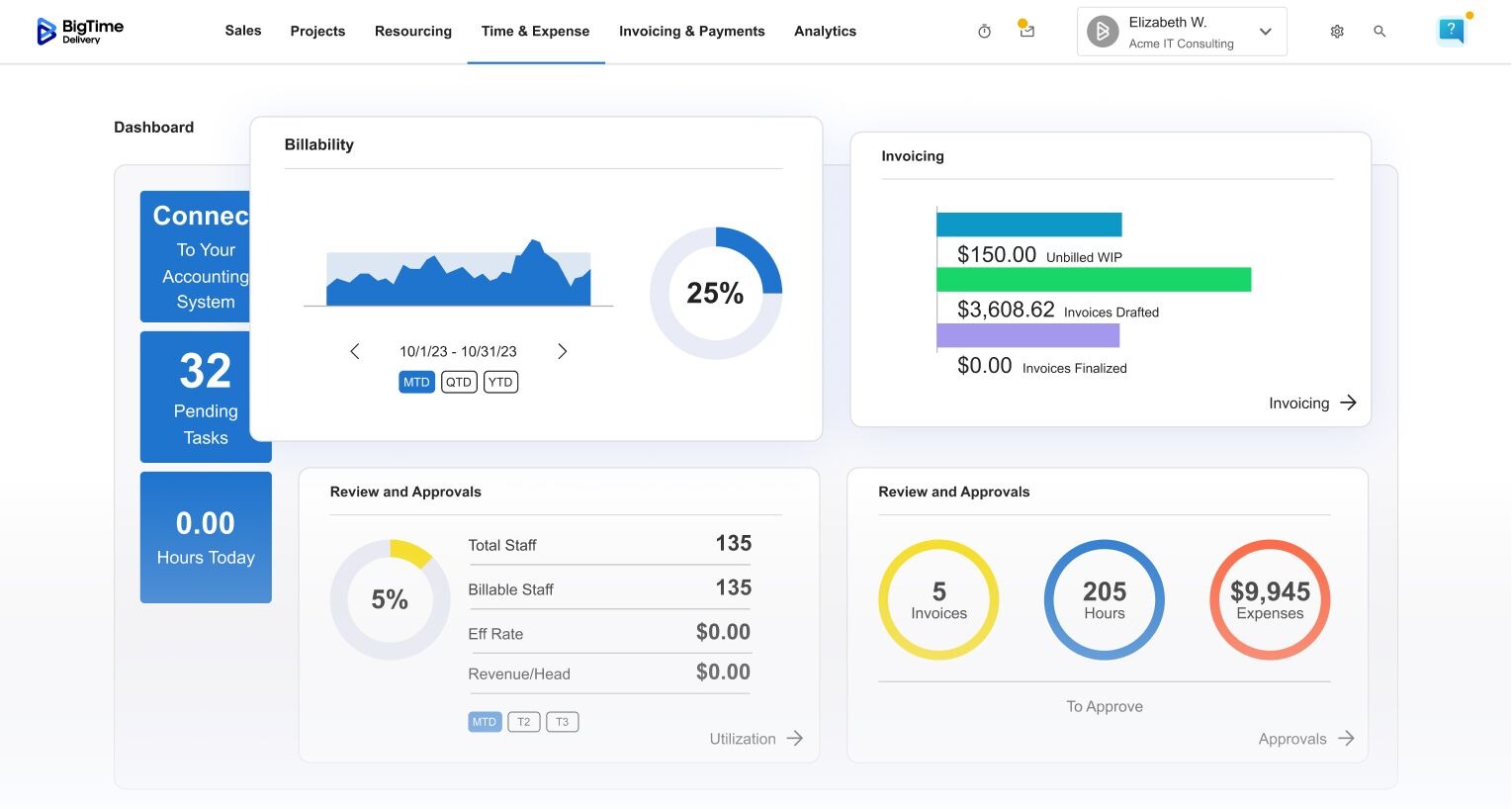
Project managers see project performance, including budget burn and planned vs actual utilization, while the work is still running. Finance sees unbilled time, overdue invoices, and revenue leakage alerts before month-end. BigTime is modular, so you can start with time and billing and add quoting or resource management later. QuickBooks keeps the ledger, and BigTime keeps the project-level view of what each hour earned.
BigTime is more platform than a solo consultant or a three-person team needs. Getting value from it means setting up rate tables, approval rules, and the QuickBooks connection with care. For a firm of 20 to 250 people, that setup is the point. Once rates and approvals live in the system, the invoice no longer depends on one person’s spreadsheet. Firms that need deeper financial controls can move up to Premier for multi-level approvals, project budgeting, and custom cost and rate management without changing systems.
Key Features
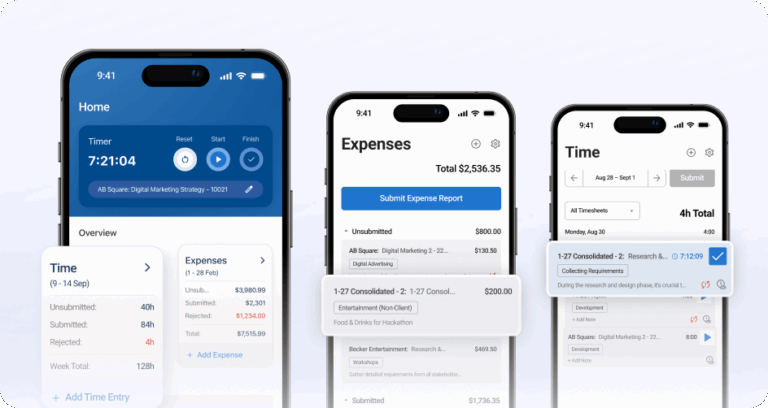
- Project time tracking with auto-fill, auto-save, and smart lookup, plus smart task management
- Mobile app to track time and expenses
- Rate management, with custom cost and rate management on Premier
- Approvals, with multi-level approvals on Premier
- Invoicing for time and materials, fixed fee, and milestone billing, with BigTime Payments
- Project financial health executive dashboard with underbilled-time and revenue leakage alerts
- QuickBooks and HubSpot integrations on every plan; Salesforce, Jira, and Sage Intacct on higher plans
From Hours to Invoice
Approved time flows into invoices under the project’s billing model, with rates applied automatically. Invoices and payments sync both ways with QuickBooks Online or QuickBooks Desktop, so the project view and the ledger agree. Underbilled-time alerts flag hours that never made it onto an invoice.
Pricing
BigTime Essentials starts at $20 per user/month and includes time and expense tracking, invoicing, and payments. Advanced, Premier, and Enterprise pricing is available on request (as of October 2026). To see how your rates and billing models would work, book a personalized demo.
Productive
Rating: G2 4.7/5, 65 reviews; Capterra 4.6/5, 108 reviews
Pros
- Billable time counts toward the budget only after it’s approved
- Invoices built from uninvoiced time, a remaining amount, or a share of the budget
- Fixed-price, time and materials, and non-billable billing types for each service
- Calendar import, with AI conversion of calendar events into time entries in beta
Cons
- Rate cards, approvals, and accounting integrations start on the Professional plan
- QuickBooks Online and Xero receive invoices, but only payment status syncs back
- Three-seat minimum and no free plan
- Reviewers mention a learning curve during onboarding
Productive is an agency management platform that combines project management, budgeting, and billable hours tracking. Each service on a budget carries a billing type, and approved time burns against the budget as the work happens. That gives agencies an early read on project profitability. Its focus is delivery: the strongest project management features sit in budgets, resource allocation, and project progress.
The billing chain only comes together on the Professional plan. Rate cards, billable time approvals, and the QuickBooks Online and Xero connections all start there, so the entry price says little about what a billing-focused firm will pay. The accounting link is also mostly one-way. Invoices and expenses go out, and only payment status comes back, so changes made in accounting don’t flow back into Productive. We found no QuickBooks Desktop support, and the pricing page quotes two different figures for the same plans. For an agency that lives in its project budgets, these are fair trade-offs. For a consulting or IT firm whose finance team works in the ledger every day, they’re where reconciliation work creeps back in.
Key Features
- Task management, with time tracked from inside each task, plus daily and weekly timesheets and a desktop timer
- Google and Outlook calendar import
- Rate cards by client on Professional
- Billable time approvals on Professional
- Project tracking against budgets with spend warnings, plus recurring budgets on Professional
- Native invoicing from budgets
- Desktop and mobile apps on all plans
From Hours to Invoice
Time becomes billable once it’s approved, then feeds an invoice built from the budget. On Professional, invoices and expenses go to QuickBooks Online or Xero, and payment status comes back. We didn’t find QuickBooks Desktop support.
Pricing
Essential costs $10 to $12 per user/month depending on the billing period, and Professional $25 to $29 per user/month. Ultimate is custom. Every plan needs at least three seats.
Harvest
Rating: G2 4.3/5, 843 reviews; Capterra 4.6/5, 655 reviews
Pros
- Invoicing on every plan, including the free forever plan
- Billable rates by project, person, or task, plus cost rates on paid plans
- Project budgeting by hours or fees, with email alerts
- Browser extensions and Google or Outlook calendar import
Cons
- Timesheet approval and profitability reports need the Enterprise plan
- The QuickBooks Online and Xero sync runs one way and copies invoices only
- No automatic time tracking
- Price is the most common complaint on G2
Harvest is a time tracking app that has paired a clean timer with invoicing for years. Projects can be time and materials, fixed fee, or non-billable, and rates can sit at project, person, or task level. For smaller teams that bill client projects by the hour, it covers the basics from timer to invoice with very little setup.
The ceiling shows up as headcount grows. Timesheet approval, the step that protects billing accuracy once several people bill one client, is reserved for Enterprise at $14 per user/month billed annually, $5 more per seat than Teams. Project profitability reports sit on the same tier, and the Free and Teams plans are limited to four custom reports. The accounting sync is thin as well. Harvest copies finished invoices, and optionally payments, to QuickBooks Online or Xero, but later edits aren’t pushed across, so corrections are made twice. There’s no native QuickBooks Desktop connection. A five-person studio rarely notices any of this. A 40-person consultancy with three project managers and a controller usually does.
Key Features
- Time tracking by timer or manual entry on web, desktop, and mobile
- Browser extensions for Chrome, Firefox, and Edge
- Calendar import from Google or Outlook.com
- Time and materials, fixed-fee, and non-billable project types
- Budgets with alerts at a set percentage
- Team reports on capacity and utilization (Teams plan)
- Harvest AI, a beta assistant that can log time or draft an invoice
From Hours to Invoice
Tracked hours go onto a Harvest invoice on any plan. Invoices, and optionally payments, then copy to QuickBooks Online or Xero, but later edits aren’t pushed across. There’s no native QuickBooks Desktop connection.
Pricing
The free forever plan covers one seat and two projects. Teams costs 9peruser/monthbilledannually(11 monthly) and allows unlimited users. Enterprise costs 14peruser/monthbilledannually(17.50 monthly), and Enterprise Plus is custom.
Clockify
Rating: G2 4.5/5, 204 reviews; Capterra 4.8/5, 9,271 reviews
Pros
- Low prices, with billable rates from the Basic plan
- Rates at workspace, member, project, task, and project-member level
- Timesheet approvals and invoices from the Standard plan
- Desktop auto tracker, browser extension, and calendar import
Cons
- Billing features are split across the Standard and Pro plans
- QuickBooks Online sync pushes time entries one way, and QuickBooks Desktop isn’t supported
- Xero is a paid add-on
- The free plan now caps users and keeps one month of report data
Clockify built its name on a generous free plan that once allowed unlimited users. It now covers up to five. Paid plans add the pieces billable hours tracking needs, one tier at a time: rates on Basic, approvals and invoices on Standard, and cost rates, budgets, and fixed fees on Pro. That keeps it affordable for smaller teams that mostly need a reliable timer.
The entry price can mislead a billing-focused buyer. A firm that needs rates, approvals, invoices, cost rates, and budgets ends up on Pro at $7.99 per user/month billed annually, and Xero costs an extra $4.99 per month on top. The QuickBooks Online integration pushes time entries one way. Per Clockify’s help center, it doesn’t support QuickBooks Desktop, Simple Start, or payroll-enabled accounts. Profit shows as billable amount minus cost, but we didn’t find a dedicated utilization report. The ratio that tells you whether people are busy on client work has to be built outside the app. Since the 2026 cap, the no-cost tier also keeps only one month of report data, which limits how far back a growing team can look.
Key Features
- Timer and manual timesheet, with a desktop app for Windows, Mac, and Linux
- Mobile app and browser extension
- Google and Outlook calendar integration
- Desktop auto tracker for automated time tracking
- Billable rates from Basic, cost rates on Pro
- Timesheet approvals and invoices from time entries and expenses on Standard
- Money budgets and budget alerts on Pro
From Hours to Invoice
On Standard and above, Clockify turns tracked time and expenses into invoices. It pushes time entries to QuickBooks Online Essentials, Plus, or Advanced, and the Xero add-on sends invoices and brings payments back. Neither connection covers QuickBooks Desktop.
Pricing
Free for up to five users. Basic costs $3.99, Standard $5.49, Pro $7.99, and Enterprise $11.99 per user/month billed annually. Monthly billing costs more.
TMetric
Rating: G2 4.6/5, 123 reviews; Capterra 4.5/5, 260 reviews.
Pros
- Rates by project, person, or work type, with workspace and client defaults
- Client invoicing and project budgets with alerts from the Professional plan
- Fixed-fee project type
- Desktop app with idle detection, mobile apps, and extensions for five browsers
Cons
- Timesheet approvals and QuickBooks sync need the Business plan
- We didn’t find a dedicated utilization or profitability report
- The live pricing page doesn’t show dollar amounts
- Reviewers mention limited customization
TMetric is a project time tracking app that covers billable rates, budgets, and invoicing at a low price per seat. Activity tracking on the Business plan adds productivity insights. Managers can gain valuable insights into the time employees spend across apps and multiple projects during work hours. It suits teams that want billing basics without a big setup project.
The pieces a growing firm leans on sit on Business. Timesheet approvals, the QuickBooks Online time sync, and activity tracking all need that plan, and TMetric’s live pricing page doesn’t show what it costs. TMetric’s own pages also differ on whether invoices sync to accounting or only tracked time does, so check before you rely on it. We didn’t find a separate cost-rate setting outside the payroll section, or a dedicated utilization or profitability report, so margin questions end up in a spreadsheet. Reviewers praise the price and mention limited customization and occasional timer glitches. For a small team billing a handful of clients, it’s good value. For a firm that has to defend margins project by project, the reporting runs out early.
Key Features
- Time tracking by timer or manual entry, with idle detection on desktop
- Desktop app for Windows and macOS, plus iOS and Android apps
- Extensions for Chrome, Firefox, Edge, Opera, and Safari
- Billable rates with workspace and client defaults
- Client invoicing and project budgets with alerts (Professional)
- Timesheet approvals and activity tracking (Business)
- Detailed reports on projects and teams, with billable amounts and costs
From Hours to Invoice
Billable time feeds client invoices on Professional. On Business, a time-sync integration sends tracked time, or billable time only, to QuickBooks Online. TMetric says it also integrates with Xero, but its pricing page doesn’t list the plan.
Pricing
Free for up to two seats. Professional costs 5.83peruser/monthbilledannually(7 monthly), and Business costs 7.50 per user/month billed annually. Enterprise is custom.
actiTIME
Rating: G2 4.6/5, 50 reviews; Capterra 4.6/5, 111 reviews.
Pros
- Low price per user, lower again above 40 users
- Cost rates per person for regular hours, overtime, and leave
- Timesheet approval and invoices generated from time and rates
- Mobile apps that work offline
Cons
- Billing rates attach to types of work, so rates by person or client take workarounds
- No native desktop app or calendar sync
- QuickBooks Online sync runs one way, and there’s no native Xero integration
- Reviewers call the interface dated
actiTIME is a timesheet-first time tracking tool with a long track record. People track time in weekly timesheets. Billable and non-billable time is set through types of work, and cost rates cover regular employee hours, overtime, and leave. That makes it useful when employee work hours have to support payroll and client billing. Cost reports show project costs, and profit and loss reports by customer, project, or task show which work pays. A self-hosted license is also available for firms that keep data on their own servers.
The trade-off is flexibility. Billing rates attach to types of work, so rates by person or client have to be modelled as extra work types. If a senior and a junior consultant do the same kind of task for one client, you need two work types to bill them differently, and the list grows with every rate change. Capture runs through the web, a Chrome extension, and mobile apps, with no desktop app, and calendar sync needs Zapier. Time records go one way to QuickBooks Online, there’s no native Xero integration, and reviewers call the interface dated. It’s a solid fit for a cost-conscious team that bills by activity. Firms with rate cards by role will spend real time on workarounds.
Key Features
- Weekly timesheets and time cards
- Chrome extension with a timer and automatic online tracking
- iOS and Android apps with offline mode
- Billable and non-billable types of work
- Cost rates for regular hours, overtime, and leave
- Time, cost, and billing budgets with overage alerts
- Profit and loss reports by customer, project, or task
From Hours to Invoice
Approved time and rates generate invoices inside actiTIME. Time records then go one way to QuickBooks Online through the actiTIME QuickBooks Integrator, which isn’t available on the free plan.
Pricing
Free for one to three users, with limited functionality. The online plan costs $6 per user/month billed yearly for 1 to 40 users and $5 per user/month for 41 to 200 users. A self-hosted license is a one-time payment.
Toggl Track
Rating: G2 4.6/5, 1,690 reviews; Capterra 4.7/5, 2,590 reviews.
Pros
- One-click billable flag on every entry
- Billable rates at workspace, member, project, project-member, and task level
- Timer, browser extension, desktop and mobile apps, and calendar auto-tracking
- Billable vs non-billable split in reports on every plan
Cons
- Invoices are PDFs generated from reports and aren’t stored in the app
- The QuickBooks integration is listed as legacy, and there’s no native Xero integration
- Utilization and profitability reports need Toggl Track’s Premium plan
- New customers are now offered “the new Toggl”; Toggl Track stays supported for existing users
Toggl Track is one of the most popular time tracking apps, and its ratings reflect how easy it is to track time with it. Desktop activity tracking on Windows and macOS fills gaps in the work hours people forget to log, and Toggl AI can log time on request. The Summary report splits billable from non-billable hours on every plan, and rates can be set at five levels.
Its limits show once hours have to become revenue. An invoice is a PDF generated from a report, so the app keeps no record of what was billed or paid. The QuickBooks integration is listed as legacy, and there’s no native Xero integration, so the accounting side of every hour lives somewhere else. Utilization and profitability reports need Premium at $16 per user/month billed annually. Reviewers also mention reporting that thins out and costs that climb as teams grow. Toggl now sells a combined time tracking and planning product to new customers. Check which version you’re buying and how long the legacy integrations will stay in place.
Key Features
- Timer, manual entry, and a browser extension
- Desktop apps for Windows and macOS with activity tracking
- Mobile apps for iOS and Android
- Calendar integrations that auto-track events
- Billable rates at five levels
- Summary and detailed reports with billable vs non-billable splits
- Utilization and profitability reports on Premium
From Hours to Invoice
You can generate a PDF invoice from a Summary or Detailed report, but Toggl Track doesn’t save it. Existing users can still send invoices to QuickBooks Online through the legacy integration. Xero needs Zapier or a third-party connector.
Pricing
Toggl Track’s free plan covers up to three users. Starter costs 9 per user/month billed annually (12 monthly), and Premium costs 16 per user/month billed annually(24 monthly). Enterprise is custom.
Memtime
Rating: G2 4.7/5, 254 reviews; Capterra 4.4/5, 125 reviews
Pros
- Automated time tracking of computer activity on Windows, macOS, and Linux
- Activity data stored locally on the device
- Calendar integrations with Microsoft, Google, and iCloud
- Rule-based suggestions for turning activity into time entries
Cons
- No billable rates, manager approvals, or invoicing, so it needs a second system
- No free plan and no monthly billing
- Integrations require the Connect or Premium plan
- We didn’t find a mobile app
Memtime solves the first problem on the list: people who forget to track time. It records computer activity in the background during work hours and shows a timeline of time spent in each app, which each person turns into time entries. Memtime describes itself as automated yet AI-free, so its suggestions come from rules you set. Everything after time tracking happens in other tools, which is why it pairs with a billing system instead of replacing one.
That pairing has a cost. Memtime has no rates, approvals, or invoices, so you pay for it alongside a billing tool. Its own price is high for a capture-only app: $14 to $29 per user/month billed annually, with no monthly option and no free version. Integrations, which carry hours to the billing side, start on Connect at $21. Capture is desktop-based, and we didn’t find a mobile app, so site visits and calls away from the computer still need manual entry. It’s a strong fix for consultants who lose hours between meetings. As a firm’s only tracker, it covers one of the four stages an hour has to pass.
Key Features
- Automated time tracking of apps, documents, and calls
- Offline, locally stored activity timeline
- Calendar integrations
- Rule-based time entry suggestions
- Reports with billable vs non-billable graphs and productivity insights
- Integrations with project management and accounting tools, including QuickBooks and Xero Projects (Connect and Premium)
From Hours to Invoice
Memtime doesn’t price or invoice time. On Connect and Premium, it imports project structures from tools such as QuickBooks or Xero Projects and sends logged hours back, where rates, approvals, and invoices take over.
Pricing
There’s no free plan. Basic costs $14, Connect $21, and Premium $29 per user/month billed annually, with quarterly and two-year options. Enterprise is custom for 50 or more seats.
Which Billable Hours Tracker Is the Best?
The best app to track billable hours depends on where your hours leak. If the problem is forgotten time, an automated time tracking app fixes it. If the problem is rates, approvals, or invoices that don’t match accounting, you need billable hours tracking software that follows each hour all the way to cash. Of all the time tracking software for billable hours in this list, only the platforms do that without a second system.
For professional services firms of 20 to 250 people that bill by the hour or by fixed fee and run QuickBooks, BigTime is the strongest choice for 2027. Every plan includes rate management, approvals, invoicing, and payments, and the QuickBooks integration syncs in both directions. You can trace every invoice line back to the hour behind it, which is the question this article started with. Book a personalized demo to see your own billing models in BigTime.
Billable Hours Tracker FAQ
Can You Track Billable Hours in Excel or Google Sheets?
Spreadsheets handle billable hours tracking for one person. A template with columns for date, client, project, task, hours, rate, and a billable flag is enough. Formulas total hours and multiply them by rate. It gets harder once several people share the file, rates change, or someone has to approve entries, because a spreadsheet has no approval step or audit trail.
Should You Bill in 6-Minute or 15-Minute Increments?
Both are common. Six-minute increments (a tenth of an hour) suit work made of short calls and emails, and they’re standard in legal billing. Fifteen-minute increments are simpler to log and review. Whichever you choose, write it into your billing rules, apply it to everyone, and let the tracker round entries the same way.
Does QuickBooks Track Billable Hours?
At a basic level, yes. QuickBooks Online Essentials and Plus let you mark timesheets as billable to a customer or project and add them to an invoice. Firms that need rates by role, approval routing, and billable hours reporting by project usually add dedicated software to track billable hours. A PSA platform that syncs with QuickBooks is a common choice.
Should Your Team Track Non-Billable Hours Too?
Yes. Non billable hours show the time spent on sales, internal projects, training, and rework, so you see where work hours go. Without them you can’t calculate utilization. Tracking billable time and non-billable time in the same tool, with tasks flagged by default, keeps both sides consistent.
How Do You Track Billable Hours on Fixed-Fee Projects?
Log time against the project exactly as you would for hourly work, but don’t bill the entries. Compare hours worked and cost against the fee as the project runs. That shows whether the fee covers the work, warns you early about overruns, and gives you real data for pricing the next proposal.
What’s the Best Automatic Time Tracking Software for Billable Hours?
For capture alone, Memtime records computer activity in the background, and time tracking tools such as Clockify, TMetric, and Toggl Track add activity tracking to a timer. Automated time tracking fixes forgotten hours, but it doesn’t price, approve, or invoice them. Check that captured entries flow into a system that applies rates and builds the invoice.
What’s the Best Time Tracking Software for Billable and Non-Billable Hours?
For professional services firms of 20 to 250 people, BigTime is the strongest choice when billable and non-billable hours need to reach invoices and accounting. Every plan includes rate management, approvals, invoicing, and a two-way QuickBooks integration, and reports show utilization and time billed by project. Solo professionals may be fine with a free time tracking app.