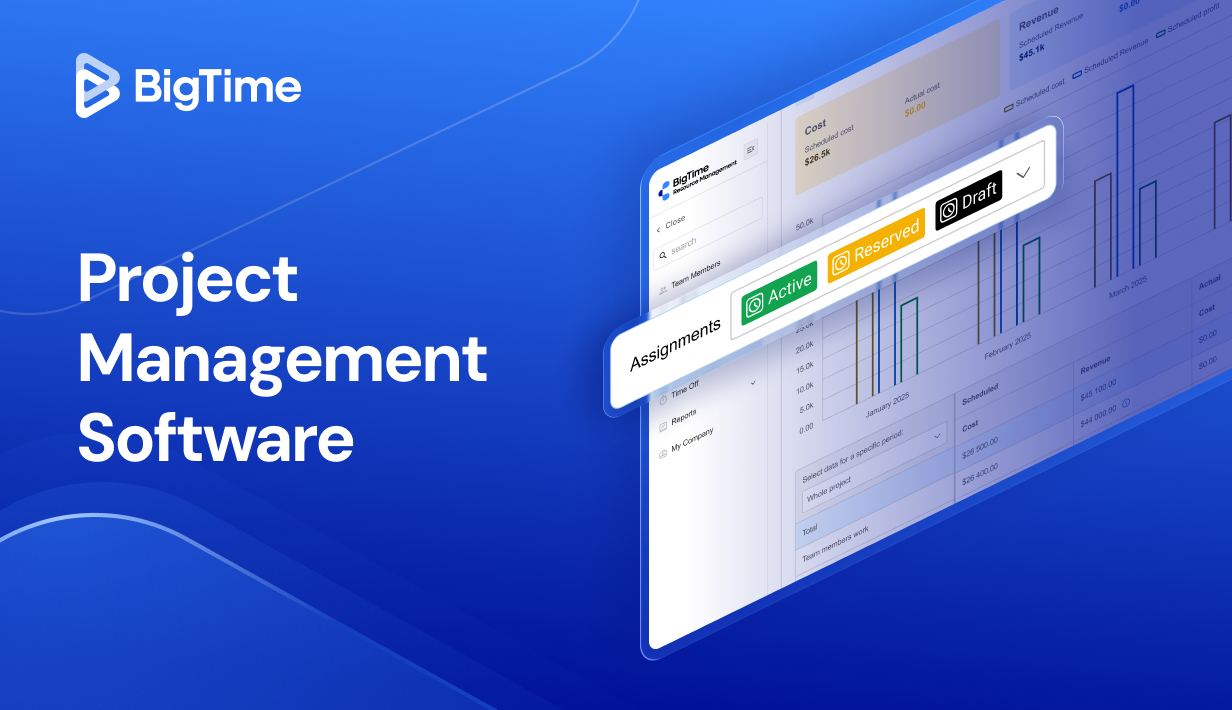
Project management software in 2026 is less about “managing tasks” and more about running work with clarity. The right platform helps you plan projects, keep teams aligned, and track progress without constant check-ins. Whether you’re handling simple task lists or complex projects with dependencies and shifting priorities, a good system keeps project data organized and execution predictable.
This guide breaks down what to look for, how to choose, and which tools are worth your time this year, including a 20+ tool ranking and a practical comparison.
What Is Project Management Software?
Project management software is a centralized system for planning, coordinating, and tracking work from start to finish. It turns a project plan into clear, actionable items so teams can execute consistently, even when priorities shift or timelines get tight.
At its core, project management software helps you:
- Break work into project milestones, tasks, and deadlines
- Assign ownership and clarify responsibilities
- Coordinate collaboration across a project team
- Track progress and project status in real time
- Keep project data organized in one source of truth
It solves the most common delivery problems: unclear priorities, duplicated effort, hidden project dependencies, and reporting that depends on “someone’s latest update” instead of actual activity. For complex projects and multiple projects running at once, it also reduces the risk of work slipping through the cracks by standardizing how projects are planned and managed.
In short, the right project management software makes work easier to understand, easier to coordinate, and easier to deliver. It gives project managers and teams a shared operating system for managing projects, tracking progress, and completing work with fewer surprises.
Project Management Software vs Project Portfolio Management Software: What’s The Difference?
Project management software is built to run the work. It focuses on project execution at the project level: building a plan, assigning tasks, managing timelines, collaborating, and keeping delivery moving day to day. If your main challenge is getting projects completed on time with clear ownership and consistent workflows, this is the category you’re evaluating.
Project portfolio management (PPM) software sits one level higher. It’s designed for prioritization and governance across many initiatives at once. PPM tools help leadership answer bigger questions: Which projects should we fund? Which ones are at risk? Where are we over capacity? Strong PPM capabilities typically include portfolio dashboards, cross-project dependencies, scenario planning, project financial management, and standardized intake and approvals.
What Features Should The Best Project Management Tools Have?
A tool can look polished and still fall apart once you throw real work at it. The best platforms contain dozens of project management features, and yet they stay usable when you’re handling multiple projects, working across multiple teams, and trying to keep complex projects on track without turning project managers into full-time spreadsheet babysitters.
Below are the core project management features that matter most in 2026, with what they should do in practice (not just in a marketing checklist).
Flexible task management that scales
Strong online project management tools support quick task capture while still handling real-world complexity through subtasks, dependencies, priorities, and recurring tasks. Bulk edits, task relationships, and consistent ownership rules in task management features keep assigned tasks from drifting when scope changes. Detailed task history and smart notifications also reduce confusion when many project tasks move at the same time.
Multiple views (list, calendar, kanban, timeline)
Mature tools keep every view tied to the same underlying project data, so boards, lists, calendars, and timelines stay synchronized. Day-to-day execution tends to live in lists and kanban boards, while planning and sequencing benefit from calendar and project timeline layouts. Saved views and filters help different teams stay focused without fragmenting the project plan.
Gantt charts with real dependency logic
A useful Gantt chart project management software goes beyond visualization by linking tasks through dependencies and reflecting schedule changes across downstream work automatically. Baselines, milestone rollups, and critical-path style signals add structure for managing complex projects over time. Fast scheduling adjustments reduce the manual overhead that typically slows project planning software down.
Resource management tools
Effective resource management surfaces capacity and workload pressure, not just assignments on paper. Cross-project visibility supports resource allocation by person, role, or skill, which becomes essential when multiple teams share the same specialists. Resource forecasting views improve staffing decisions earlier in the cycle, when adjustments still protect delivery dates.
Time tracking connected to delivery
Time tracking delivers value when it connects effort to outcomes, not when it becomes another administrative chore. Reliable systems link time entries to tasks and projects, then translate that data into burn-rate visibility, phase-level effort analysis, and forecasting accuracy. At the same time, approvals, reminders, and audit trails support consistent data quality across the project team.
Portfolio oversight for multiple projects
Portfolio views provide a single place for rolled-up health, timelines, workload, and risk across multiple projects. Strong portfolio management features include consistent status logic, cross-project filtering, and side-by-side comparisons that make project prioritization less subjective. Drill-down paths that reach the underlying blockers and tasks help leaders act on what the portfolio view reveals.
Workflow automation for repetitive tasks
Automation reduces routine coordination through rule-based assignments, reminders, approvals, and status transitions. Standardized workflows prevent process drift, especially when different project managers run similar work in slightly different ways. Over time, automation also improves reporting consistency because the system captures progress signals more predictably.
Collaboration tools with context
The best team collaboration tools keep conversation, decisions, and updates attached to the work item they reference. Mentions, comments, and activity history preserve the “why” behind changes and make project status easier to explain with evidence. Lightweight review cycles and clear notification trails also reduce back-and-forth across channels.
Custom fields and structured project data
Custom fields turn a generic workspace into a reporting-ready system by standardizing how work gets labeled and tracked. Attributes like client, priority, risk, billable status, and work type become filterable, reportable signals across projects. When custom fields also drive automation and dashboards, insights remain consistent even as the project portfolio grows.
Custom project templates
Templates accelerate project planning by reusing proven phases, milestones, dependencies, and checklists instead of rebuilding project plans from scratch. Consistent templates reduce schedule variance across similar initiatives and improve onboarding for new project managers. Template libraries also create a feedback loop where process improvements translate into faster, more reliable future launches.
Reporting and dashboards to track progress
Strong reporting in project management apps highlights trends that matter, including overdue patterns, workload distribution, milestone risk, and overall project progress. Executive dashboards that slice by team, project, portfolio, or timeframe support faster diagnosis without constant exports. Shareable reports reduce manual status updates and improve stakeholder alignment.
Integrations that reduce manual updates
Integration depth matters more than integration count, especially when updates need to flow reliably across chat, email, calendars, file systems, and development tools. Strong integrations reduce duplicate entry and keep project tracking accurate in the places teams already work. API support and automation connectors add flexibility for organizations with specialized workflows.
2026 Project Management Software Ranking
The project management category covers everything from lightweight task boards to enterprise-grade systems built for managing complex projects, resource allocation, and portfolio visibility. To make this ranking useful, the focus stays on real-world fit: how well each project management software tool supports planning, day-to-day execution, team collaboration, reporting, and the advanced features that matter once you’re running multiple projects across multiple teams.
This 2026 list includes a mix of classic project managing software and modern online project management tools, with options for small teams that want a generous free plan as well as organizations that need paid plans, custom pricing, and more robust governance. The ranking also reflects different work styles, including agile project management, timeline-driven project planning software, and platforms with strong time tracking and resource management tools.
Project Management Tools – Comparison
What Is The Best Free Project Management Software?
| Tool | Description | Strengths | Limitations |
| BigTime | Professional services-focused project management software that connects project planning, time tracking, and resource management. | Excellent time tracking approvals and utilization visibility; strong resource allocation across multiple projects; reliable reporting on project progress and delivery performance. | Less suited to casual personal task lists; strongest fit for client delivery teams that need operational and financial visibility. |
| Asana | Cross-functional project management app centered on tasks, collaboration, and flexible views. | Strong task management and team collaboration; helpful templates and workflow automation; good usability for broad teams. | Portfolio and workload capabilities often require higher tiers; resource management depth remains limited for complex projects. |
| monday.com | Configurable work management software with boards, dashboards, and automation. | Highly flexible boards and custom fields; strong dashboards; good adoption for small teams and multiple teams. | Can become messy without governance; dependency-heavy planning and complex projects often need workarounds; costs rise with advanced needs. |
| Wrike | Enterprise-leaning project tracking software with structured workflows, approvals, and reporting. | Good governance and request/approval flows; strong reporting structure for standardized teams. | Steep learning curve; admin/config overhead; can feel heavy for everyday task management. |
| Smartsheet | Spreadsheet-style project planning software for structured tracking, rollups, and reporting. | Strong cross-project reporting and dashboards; familiar grid experience; solid for standardized tracking at scale. | Collaboration can feel less native than modern apps; “spreadsheet sprawl” risk; advanced capabilities often tied to higher tiers/add-ons. |
| ClickUp | All-in-one project managing software combining tasks, docs, and multiple planning views. | Very broad feature set; generous free plan; flexible views including Gantt and kanban board. | Complexity and workspace noise common; performance complaints at scale; resourcing accuracy depends on disciplined project data. |
| Jira | Agile project management platform built for software development teams. | Best-in-class for sprints, backlogs, and issue workflows; strong ecosystem and configurability. | Steeper learning curve for non-technical teams; portfolio reporting and resourcing often require add-ons; admin overhead can grow quickly. |
| Microsoft Project | Schedule-first project planning software built around gantt charts, dependencies, and baselines. | Excellent gantt charts and dependency modeling; strong for formal project plans and PMO-style control. | Less friendly for day-to-day collaboration; can feel rigid; advanced portfolio and resource allocation typically sit in higher tiers. |
| Trello | Lightweight kanban board tool for simple task management. | Easy adoption; quick visual tracking; solid for simple workflows and small teams. | Limited for managing complex projects, dependencies, and portfolio oversight; reporting depth often requires add-ons. |
| Notion | Workspace for docs and databases that can support lightweight project tracking. | Great for combining knowledge and project data; flexible templates and custom fields. | Not purpose-built for advanced project tracking, dependencies, or robust scheduling; consistency depends on workspace design. |
| Basecamp | Collaboration-first platform for simple project organization and communication. | Low-friction communication and file sharing; easy onboarding for small teams. | Limited advanced features like gantt charts, portfolio management, and deeper reporting; outgrown by complex projects. |
| Teamwork | Client-focused project management software with time tracking and workload options. | Good for client delivery workflows; time tracking included; useful workload planning in higher tiers. | UI/navigation and reporting complaints appear; free plan limits; scaling often pushes teams into higher paid plans. |
| Zoho Projects | Budget-friendly project management solution within the Zoho ecosystem. | Good value; solid core planning tools including gantt charts and time logs; integrates well with Zoho apps. | UI and navigation friction common; portfolio/governance depth limited without upgrades; best experience often depends on Zoho stack. |
| Airtable | Database-driven system used to build custom project tracking workflows. | Powerful structured project data with custom fields and linked records; flexible views and intake. | Not a full project management system out of the box; planning and reporting require design effort; pricing rises with more collaborators. |
| Hive | All-in-one project management tool with collaboration and optional add-ons. | Good breadth of features and views; workable for teams wanting one hub. | Add-ons can increase cost and complexity; can feel cluttered at scale; integrations depth not always a highlight. |
| ProofHub | Flat-rate project management tool with collaboration, proofing, and basic planning. | Unlimited users pricing model; solid all-in-one basics including proofing and time tracking. | Integrations ecosystem can feel thin; limited for advanced reporting, portfolio oversight, and complex dependency planning. |
| Workfront (Adobe) | Enterprise work management platform for governance, approvals, and high-volume workflows. | Strong intake approvals and governance; best fit for Adobe-centric marketing/ops environments. | Heavy implementation and training; quote-based pricing; overkill for many teams and basic task management. |
| LiquidPlanner | Forecasting-oriented project planning software focused on predictive scheduling. | Strong scheduling/forecasting approach for shifting priorities; highlights schedule risk. | Heavier workflow than most tools; accuracy depends on disciplined updates; less ideal for lightweight collaboration-first teams. |
| ProjectManager | General project management app with gantt, dashboards, and collaboration. | Balanced feature set with common planning views; approachable for traditional PM needs. | Less differentiated on advanced resource management and portfolio depth; integration/performance concerns appear in feedback; pricing often quote-driven. |
| nTask | Budget-friendly project tracking software with basic planning and timesheets. | Low barrier to entry; basic task management and timesheets; suitable for small teams. | Limited scalability for multiple projects and complex projects; lighter reporting and integrations; polish/performance concerns in reviews. |
| Redmine | Open-source issue and project tracking software typically self-hosted. | No license cost; strong issue tracking fundamentals; customization possible with plugins. | possible with plugins.Dated UI and weaker out-of-the-box experience; many modern features rely on plugins; support and maintenance fall on the team. |
BigTime
Reviews: G2: 4.5, Capterra: 4.6.
Pros:
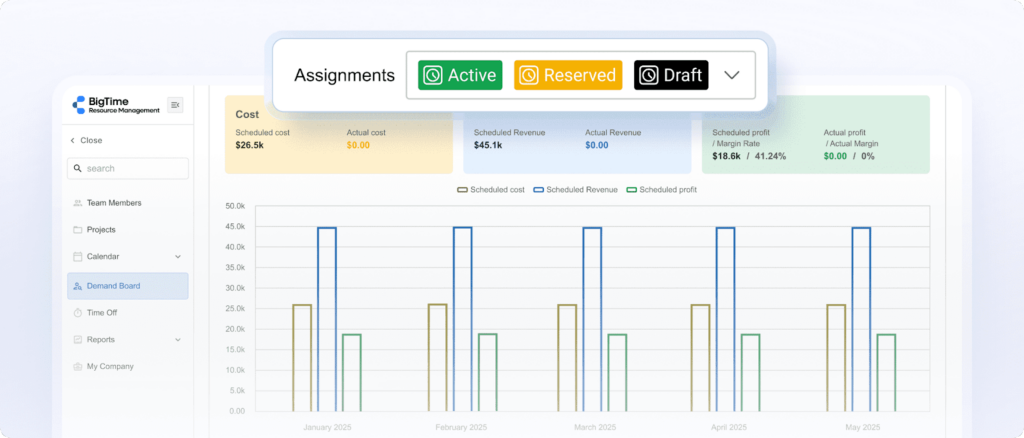
- Built for delivery teams that also need financial clarity. Time tracking, approvals, invoicing tools, and reporting sit close to the project plan, which keeps project progress tied to real effort and real costs.
- Resource management that supports realistic commitments. Capacity and utilization visibility make resource allocation decisions easier across multiple projects, especially when the same specialists support multiple teams.
- A modular platform that scales with operational complexity. BigTime’s approach supports growing firms that start with the essentials, then add modules and other robust features as needs expand across the full project lifecycle.
- Strong reporting posture for project managers and leadership. The platform emphasizes real-time visibility into operational performance, so stakeholders spend less time rebuilding status from scratch.
Cons:
- More depth than many general project management tools. Teams that only need lightweight task management may find the platform broader than necessary, especially during early rollout.
- Advanced functionality raises the learning curve. Resource management features, cost/rate settings, and multi-level approvals can require more thoughtful setup than simpler project managing software.
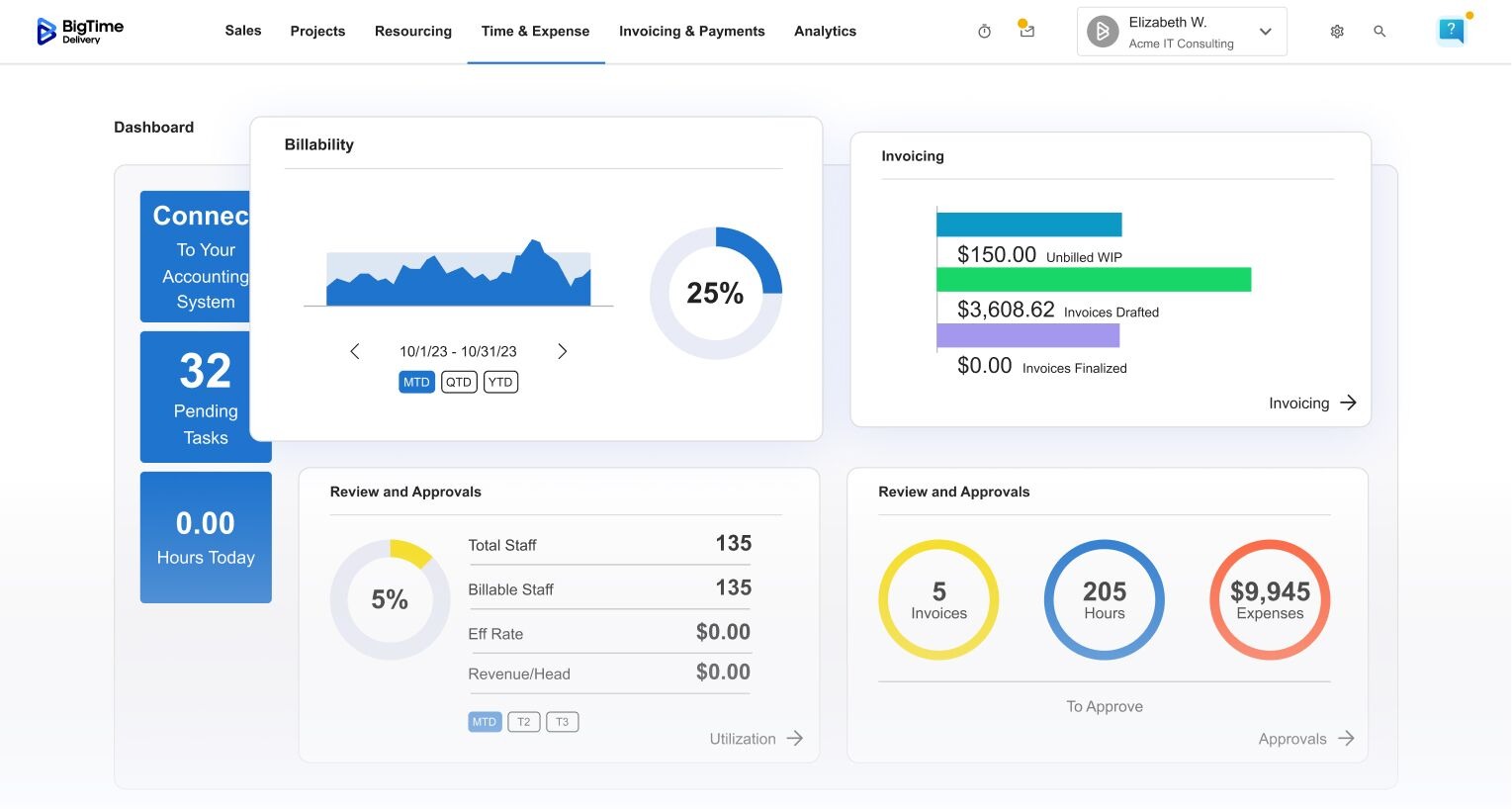
BigTime’s PSA software fits best when “getting work done” is only half the equation. Many project management software tools do a solid job helping teams manage tasks, collaborate, and track project status. BigTime goes further by connecting delivery to the numbers that decide whether a project is healthy: time, utilization, budgets, rates, and billing. For professional services firms, that means the project plan and the business outcomes stay aligned, even when priorities shift across multiple projects.
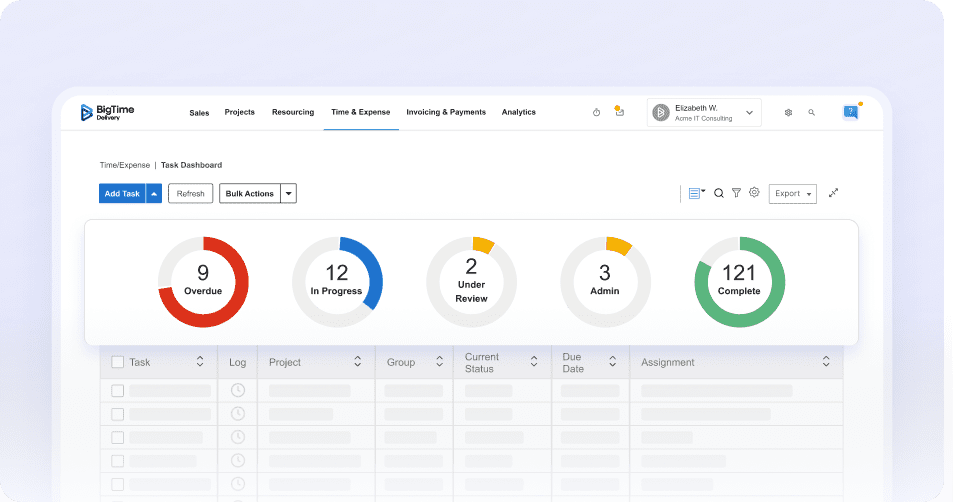
This is also where BigTime stands out from most of other tools for project management. Instead of treating time tracking and invoicing as add-ons, the platform builds them into comprehensive features delivery flow, along with resource management and portfolio-level visibility. The result supports project managers who need to plan projects, track progress, assign human resources, and defend margins at the same time, without stitching together multiple systems and reconciling project data manually. Consequently, BigTime is a perfect choice for all professional services companies wishing to manage unlimited projects, from construction businesses to software development teams.
Key Features
- Time & expense management: Time tracking and expenses stay connected to projects and approvals, supporting clean reporting and smoother billing cycles.
- Billing & invoicing management: Invoicing workflows tie back to tracked work, supporting faster, more consistent billing without disconnects between delivery and finance.
- Resource management module: Capacity, utilization rates, and staffing visibility support resource allocation and team management decisions across multiple teams and changing timelines.
- Project portfolio management: Portfolio rollups make it easier to understand project progress across multiple projects, not just inside one project plan.
- Advanced features for financial monitoring. BigTime can also act as a project budgeting software, providing project managers with a comprehensive features for financial monitoring and forecasting..
- Project templates and custom reporting (by plan): Structured templates and a reporting center support consistent delivery and clearer executive visibility in just a few clicks even as complexity grows.
- Multi-level approvals and project budgeting (by plan): Approval layers and budgeting controls support stronger governance when projects scale in size, scope, or stakeholder count.
Pricing
Essentials starts at $20 per user/month. Advanced and Premier tiers add capabilities like templates, custom reporting, multi-currency, budgeting, and multi-level approvals. Free personalized demo available.
Asana
Reviews: G2: 4.4/5, Capterra: 4.5/5.
Pros:
- Strong for cross-functional task management. Asana handles day-to-day task management well, especially when teams need a clear place to organize work, owners, and deadlines without overengineering the workflow.
- Helpful structure for team collaboration. Comments, updates, and project-level organization keep discussions closer to the work than email-heavy coordination.
- Solid mid-tier features for growing teams. Custom fields, forms, dashboards, and rules provide a meaningful step up from basic project management tools.
Cons:
- Portfolio and “at-scale” visibility usually pushes teams into higher tiers. More advanced portfolio management features, goals, and workload views tend to sit behind the Advanced plan, which can raise the total cost quickly as teams grow.
- Complexity increases fast for large, busy workspaces. As project data expands, navigation and reporting can feel cluttered unless governance and naming standards stay tight.
- Resource management is not a core strength. Capacity planning and resource allocation support exist, but they typically don’t match services-focused platforms built around utilization and staffing.
Asana remains one of the most recognizable options in project management software because it fits a wide range of teams and workflows without requiring a heavy setup. For organizations that want a flexible project management app to organize tasks, collaborate, and maintain consistent project status, Asana often feels approachable and fast to adopt.
That said, Asana can become less satisfying when work moves from “team task management” into managing complex projects with serious resource constraints, deep portfolio reporting needs, or strict governance requirements. Many teams end up relying on conventions and manual discipline (naming rules, tagging standards, reporting hygiene) to keep the system clean as the number of projects and stakeholders grows.
Key Features
- Timeline & Gantt views: Timeline and Gantt-style scheduling views support dependency-aware planning and clearer sequencing for project plans.
- Custom fields: Custom fields help standardize project data like priority, budgets, and status signals across teams and projects.
- Forms: Intake forms route requests directly into projects, which reduces manual triage and supports more consistent workflows.
- Unlimited rules: Automation rules support status updates, notifications, and routine handoffs for repetitive tasks.
- Portfolios and workload (Advanced): Portfolio rollups and workload views support multi-project oversight, but they’re positioned in higher tiers.
Pricing
Personal plan available; Starter $10.99/user/month billed annually ($13.49 monthly), Advanced $24.99/user/month billed annually ($30.49 monthly); Enterprise pricing available via sales.
monday.com
Reviews: G2: 4.7/5, Capterra: 4.6/5.
Pros:
- Highly flexible boards for task management. monday.com adapts well to different workflows, especially when teams want visual tracking.
- Strong team collaboration layer. Updates, comments, @mentions, and file sharing live inside work items, which helps reduce scattered communication.
- Solid automation and dashboard options. Automations and dashboards help teams track progress and standardize repetitive tasks, particularly in cross-functional environments.
Cons:
- Core capabilities often gated by higher tiers. Features many teams consider “core” (deeper reporting, more advanced controls) tend to push accounts into more expensive plans as usage grows.
- Governance matters more than people expect. The same flexibility that makes setup easy also makes workspaces messy fast, especially with multiple teams and inconsistent naming or board structures.
- Not a specialist for managing complex projects. It works well for work tracking and coordination, but deep dependency management, heavy project planning software needs, and portfolio-style rigor can feel limited compared with more purpose-built systems.
monday.com is often chosen as a project management software tool because it’s visually intuitive and can be shaped into many different workflows. For teams that want a straightforward interface, quick task updates, and flexible project data structure, it can feel like a “work operating system” rather than a rigid project template.
Where it can disappoint is at scale. As more boards, automations, and stakeholders pile in, reporting consistency and portfolio clarity often depend on strict internal standards. Without that discipline, the platform can drift into a collection of semi-connected boards that make project status harder (not easier) to trust.
Key Features
- Boards, statuses, and custom fields: Flexible structures for task management, tracking project tasks, and organizing project data in the way each team works. Strong customization helps, but consistency requires governance.
- Dashboards and reporting: Dashboards roll up project management metrics and progress signals across boards, supporting high-level visibility for project managers. More advanced reporting tends to be plan-dependent.
- Automations: Rule-based automation reduces repetitive tasks through triggers like status changes, assignments, and notifications. Complex logic can hit limitations without workarounds.
- Timeline and Gantt-style views: Visual planning views help teams plan projects and map schedules at a glance. Depth for dependency-heavy project planning varies by configuration and tier.
- Integrations ecosystem: Integrations support connecting monday.com to common collaboration tools and productivity apps. The real value depends on how cleanly workflows stay synchronized.
Pricing
G2 lists Standard at $12/user/month (3-seat minimum) and Pro at $19/user/month (3-seat minimum), with Enterprise available via sales.
Wrike
Reviews: G2: 4.2/5, Capterra: 4.4/5.
Pros:
- Strong structure for complex projects. Wrike handles dependencies, approvals, and more formal project planning better than many lightweight project management tools, especially when multiple teams share the same workflow patterns.
- Good reporting and workflow control (with the right setup). Dashboards, custom workflows, and request forms support more disciplined project tracking when teams commit to consistent usage.
Cons:
- Steeper learning curve than most project management apps. The platform’s depth can slow adoption, and “doing it right” often requires admin effort and internal standards to keep project data clean.
- Costs rise as needs become real. Wrike offers a free tier, but core scaling needs (capacity planning, stronger controls, broader rollups) typically push teams into paid plans and sales-led tiers.
- Can feel heavy for everyday task management. Teams looking for a straightforward interface may find navigation, configuration, and notification volume harder to manage as projects multiply.
Wrike sits in the “enterprise-leaning” side of project managing software. It performs best when teams need more than basic task management and want a configurable system that supports structured workflows, approvals, and visibility across multiple projects. In organizations with consistent processes, Wrike can provide a reliable project management solution for tracking work, monitoring project progress, and maintaining clearer project status over time.
The tradeoff is operational overhead. Wrike tends to reward teams that invest in setup and governance, while teams that want fast, lightweight coordination often experience friction. For project managers running busy portfolios, it can work well, but adoption and cleanliness usually depend on disciplined usage across the project team.
Key Features
- Gantt charts and project scheduling: Timeline planning with dependency support for teams managing complex projects and milestone-driven delivery.
- Custom fields and workflows: Structured project data and workflow stages that support standardized processes across multiple teams.
- Request forms and approvals: Intake and approval flows that reduce manual follow-ups and keep work moving through defined steps.
- Resource and capacity planning (paid): Workload-style views for staffing and resource allocation decisions across multiple projects.
Pricing
Free plan available ($0/user/month). Business plan listed at $25/user/month; higher tiers and add-ons use custom pricing via sales.
ClickUp
Reviews: G2: 4.7/5, Capterra: 4.6/5.
Pros:
- Very broad feature coverage for a single platform. ClickUp combines task management, docs, whiteboards, chat, and multiple project planning tools, which can reduce the need for several other project management tools.
- A generous free plan for basic usage. The Free Forever tier includes unlimited tasks and unlimited free plan members, which works well for early-stage teams testing workflows.
Cons:
- A “too much at once” experience is common. The same breadth that makes ClickUp attractive can create a steeper learning curve, especially when teams try to enable every feature and customize everything immediately.
- Performance and usability complaints show up in larger workspaces. Heavily customized setups and large datasets can feel slower or less intuitive than simpler project managing software, which adds friction to day-to-day project tracking.
- Resource and workload capabilities exist, but discipline still matters. Workload/resource management features are available on paid tiers, yet accurate capacity planning depends heavily on consistent task hygiene and clean project data.
ClickUp positions itself as an “all-in-one” project management solution, and it often succeeds for teams that want a single hub for tasks, docs, and collaboration. It can work well for managing projects that need flexible views (including a kanban board and gantt charts) and a wide set of configuration options.
The tradeoff is complexity. ClickUp can feel like a toolbox that needs internal standards to stay organized, especially when multiple projects and multiple teams share one workspace. Without clear conventions, dashboards and reporting become less trustworthy, and the tool’s advanced features can turn into noise rather than clarity.
Key Features
- Multiple project views (including Gantt and Timeline): ClickUp supports gantt charts and timeline views on paid tiers, which helps visualize dependencies and schedules. The depth is real, but maintaining accuracy often depends on consistent updates and structured workflows.
- Goals & Portfolios: Portfolio-style rollups support tracking progress across multiple projects and higher-level visibility for project managers. The usefulness improves when teams standardize statuses, custom fields, and reporting conventions.
- Native time tracking and workload/resource management: Built-in time tracking and workload management reduce reliance on separate tools for some teams. These features tend to perform best when task structure and ownership remain consistent across the project plan.
- Automations and integrations: Automation integrations help reduce repetitive tasks and keep work moving through predictable steps. More powerful automation usage typically aligns with higher tiers and cleaner workspace design.
Pricing
Free Forever available. Unlimited is $7 per user/month billed yearly, Business is $12 per user/month billed yearly, and Enterprise uses custom pricing.
Jira
Reviews: G2: 4.3/5, Capterra: 4.4/5.
Pros:
- Excellent for agile project management and software development teams. Backlogs, sprint planning, and issue workflows are where Jira feels most natural, especially when projects revolve around tickets and releases.
- Deep configurability and a strong ecosystem. Custom workflows and a large marketplace can stretch Jira into a broader project tracking software role when teams standardize how they manage projects.
Cons:
- Less intuitive for non-technical teams. Many organizations experience a steep learning curve, and day-to-day task management can feel heavier than modern project management apps built for general business users.
- “Core” needs often trigger add-ons and complexity. Reporting, automation depth, and cross-team portfolio visibility can lead to plugin sprawl, higher costs, and more admin overhead than expected.
- Resource management is not a primary strength. Capacity planning and resource allocation are possible, but typically require additional tooling or disciplined workarounds compared to services-focused platforms.
Jira remains a top project management software tool when the work is engineering-led and the team wants tight control over workflows, statuses, and traceability. For organizations running multiple projects with agile delivery, it can provide consistent project data and reliable project status signals, especially when governance is strong.
The drawback is fit outside that core use case. As a general “software for managing projects” platform for marketing, operations, or client delivery, Jira can feel rigid and admin-heavy. Teams often spend meaningful time configuring fields, workflows, and permissions to keep the workspace usable as it grows.
Key Features
- Scrum and kanban boards: Strong support for sprint execution, backlog management, and workflow visibility through boards designed for agile teams.
- Custom workflows and issue types: Flexible configuration for approvals, statuses, and task structures, though complexity increases as customization expands.
- Roadmaps and dependency planning (Premium): Cross-team planning and dependency management features improve multi-team coordination, but sit behind higher tiers.
- Dashboards and reports: Built-in reporting provides visibility, but many teams still rely on add-ons for deeper portfolio-style reporting.
Pricing
Free plan available for up to 10 users ($0). Standard is $7.91 per user/month, Premium is $14.54 per user/month, and Enterprise is sales-led.
Microsoft Project
Reviews: G2: 4.0/5, Capterra: 4.4/5.
Pros:
- Excellent for schedule-driven project planning. Strong gantt charts, dependencies, baselines, and critical-path style controls suit teams that run formal project plans and deadline-sensitive work.
- Fits naturally in Microsoft environments. Tight alignment with Microsoft 365 and the broader Planner/Project direction reduces friction for teams already standardized on Microsoft tools.
Cons:
- Heavier than most project management apps. Day-to-day task management can feel cumbersome, especially for small teams or fast-moving projects that don’t need strict scheduling discipline.
- Portfolio and enterprise resource management sits at the top end. Advanced portfolio management and enterprise resource allocation are positioned in higher-tier plans, which increases total cost quickly at scale.
- Collaboration is not the main attraction. Compared with modern online project management tools, the experience tends to lean more toward planning and control than lightweight team collaboration.
Microsoft Project remains one of the most recognizable names in project managing software, largely because it treats scheduling as the center of the system. For project managers who live in timelines, dependencies, and structured planning, it can be a reliable project management solution for tracking project progress and keeping complex projects aligned to a baseline.
The tradeoff is practicality for everyday work. Teams that want a straightforward interface for quick task updates, flexible collaboration tools, and rapid iteration across multiple projects often find Microsoft Project more rigid than needed. It tends to deliver the most value in organizations that enforce consistent planning discipline and have a real need for deep scheduling controls.
Key Features
- Timeline planning with gantt charts: Schedule-first planning supports dependencies, milestones, and visual sequencing for larger project plans.
- Baselines and critical path: Baselines help track variance, while critical path visibility supports risk management as timelines shift.
- Resource management capabilities (plan-dependent): Resource request capabilities and enterprise resource allocation appear in higher-tier plans aimed at larger organizations.
- Portfolio management (top tier): Portfolio controls are positioned as advanced capabilities, designed for program and portfolio oversight rather than lightweight tracking.
Pricing
Planner Plan 1 $10/user/month (paid yearly); Planner and Project Plan 3 $30/user/month (paid yearly); Planner and Project Plan 5 $55/user/month (paid yearly).
Trello
Reviews: G2: 4.4/5, Capterra: 4.5/5.
Pros:
- Fast, visual task management. Boards, lists, and cards make it easy to track progress at a glance, especially for simple workflows and lightweight project tracking.
- Easy adoption for small teams. The interface stays approachable, so teams often get value quickly without a heavy setup.
Cons:
- Limited for managing complex projects. Dependency tracking is a known weak spot, which creates friction when work needs sequencing and cross-team coordination.
- Portfolio, governance, and permissions feel thin at scale. Larger organizations often hit limitations around controls and structured oversight without layering on other tools.
- Reporting depth often requires add-ons. Basic visibility works well, but advanced reporting and analytics typically push teams toward Power-Ups or external systems.
Trello remains one of the most recognizable project management tools because it keeps project work simple and visual. For teams that want a kanban board-first project management app, it performs well as a lightweight system for managing projects, assigned tasks, and everyday task management.
The tradeoff shows up when projects become more structured. As soon as work needs dependency-heavy workolad management, portfolio-level oversight across multiple projects, or stronger governance, Trello tends to rely on workarounds and integrations. It can still play a role in a broader project management solution, but it rarely works as the only system once complexity grows.
Key Features
- Boards, lists, and cards: A straightforward model for tracking project tasks visually, with quick updates and clear workflow stages.
- Power-Ups and integrations: Optional add-ons extend functionality (reporting, calendars, connectors), but capability gaps often lead to “addon stacking.”
- Butler automation: Rule-based automation supports repetitive tasks such as moving cards, assigning owners, or triggering reminders.
- Views on paid tiers: Higher plans add views like Timeline and Dashboard-style overviews, but deeper portfolio management still stays limited compared with more robust project managing software.
Pricing
Free plan available; paid tiers include Standard and Premium, plus Enterprise for larger organizations.
Notion
Reviews: G2: 4.6/5, Capterra: 4.7/5.
Pros:
- Great for combining docs + project tracking. Notion works well when project planning, meeting notes, and lightweight task management need to live together in one workspace.
- Flexible databases and templates. Custom fields and database views make it possible to model project data in a way that fits different teams and workflows.
Cons:
- Not purpose-built for complex projects. Dependency-heavy scheduling, true gantt depth, and rigorous project tracking can feel limited compared to dedicated project management software.
- Setup effort becomes the real cost. Many teams spend significant time building and maintaining their own “system,” and consistency can slip across multiple projects without strong standards.
- Mobile/offline and performance complaints show up. Usability drawbacks (especially on mobile) and slowdown with larger workspaces appear frequently in user feedback.
Notion is best described as a flexible workspace that can include project management, rather than a traditional project managing software platform. It shines when a team wants software for managing projects and documentation in the same place: specs, project notes, decisions, and task lists side by side. For small teams, that “everything together” model can reduce context switching and make collaboration feel smoother than bouncing between a wiki and a separate project management app.
The downside is that Notion often depends on how well the workspace is designed. As projects scale, teams commonly run into uneven task management, inconsistent project status reporting, and gaps around advanced features like dependency management, resource allocation, and portfolio oversight. For managing complex projects, it usually plays better as a supporting system (knowledge base + lightweight tracking) than as the only project tracking software.
Key Features
- Databases for structured project data: Database tables with custom fields enable tracking owners, due dates, priorities, and statuses in one place, then slicing the same data into different views.
- Templates and internal wikis: Templates speed up repeatable work and help standardize how teams document projects, requirements, and processes.
- Multiple views (board/table/calendar): Kanban-style boards and calendar-style layouts support basic task management and planning, but deeper scheduling remains lighter than dedicated project planning software.
- Collaboration and comments: Real-time editing and page-level collaboration keep feedback close to project artifacts, though task-level rigor depends on the workspace structure.
Pricing
Free, Plus, Business, and Enterprise plans (seat-based for team workspaces).
Basecamp
Reviews: G2: 4.1/5, Capterra: 4.3/5.
Pros:
- Simple, low-friction collaboration. Message boards, to-dos, and file sharing keep communication tied to the project without a lot of configuration overhead.
- Easy onboarding for small teams. The product’s opinionated structure reduces setup time compared with more customizable project management tools.
Cons:
- Limited depth for complex projects. Advanced features like dependency-heavy planning, robust reporting, and portfolio management features tend to feel thin once multiple projects become interdependent.
- Not built as a full project tracking software system. Teams often outgrow Basecamp when they need stronger workflow automation, structured task management features, or executive-level visibility.
Basecamp sits closer to “team collaboration hub” than traditional project planning software. It works best for teams that want a straightforward interface for organizing conversations, basic task lists, and shared files with minimal overhead. In that lane, it can keep a project team aligned without turning project managers into tool administrators.
The tradeoff is depth. For managing complex projects, running multiple teams, or needing tighter project status control across multiple projects, Basecamp’s simplicity becomes a constraint. Many organizations end up pairing it with other tools for reporting, time tracking, and structured planning when requirements grow.
Key Features
- To-dos + assignment basics: Task lists with owners and due dates cover lightweight task management, but limited structure shows up when projects require dependencies and detailed workflows.
- Message boards and team communication: Discussions stay organized by project area, which supports cleaner collaboration than scattered email threads.
- Docs & file storage: Files and documents live inside projects for quick access, which helps with day-to-day file sharing and context.
- Simple scheduling views: Lightweight planning tools support basic coordination, though they do not replace gantt charts or structured project plan controls.
Pricing
Free plan includes one project and up to 20 users. Paid plans include Basecamp Plus at $15/user/month and Basecamp Pro Unlimited at $349/month.
Teamwork
Reviews: G2: 4.4/5, Capterra: 4.5/5.
Pros:
- Strong for client delivery workflows. Teamwork is designed around managing client work, with built-in structure for tracking projects, deadlines, and collaboration across a project team.
- Time tracking and workload planning are part of the product story. Higher tiers add budgeting and a workload resource planner, which helps when multiple projects compete for the same people.
Cons:
- Interface clarity and reporting consistency can be a pain point. Reviews frequently mention navigation friction, hidden features, and performance issues, which become more disruptive as project data grows.
- Scaling pushes teams up the pricing ladder. The free plan is limited (users/projects/automations), and the more serious capabilities sit in paid plans and sales-led tiers.
- Not the cleanest choice for teams that want “simple.” Between feature depth and workspace sprawl risk, the setup often rewards disciplined project managers more than casual users.
Teamwork sits in the “client work” lane of project management software. It covers the essentials for task management and team collaboration, and it positions itself as a practical system for keeping projects organized while staying mindful of delivery operations. For teams that need software for managing projects with a service-delivery flavor, it can be a reasonable middle ground between lightweight boards and heavier enterprise platforms.
The tradeoff is polish and consistency. As organizations run multiple teams and multiple projects, the experience can feel less streamlined than top project management software tools that prioritize simplicity. Reporting and navigation concerns show up repeatedly in user feedback, and the best results usually come from teams willing to enforce conventions and keep project data tidy.
Key Features
- Project planning views (including timelines): Planning and visibility features support tracking project progress and maintaining a clearer project plan across ongoing work.
- Time tracking (included across plans, emphasized in Free): Time tracking is positioned as a core capability for client delivery and accountability.
- Budgeting and financial controls (Grow): Budgeting and financial reporting features appear in higher tiers, supporting more structured delivery oversight.
- Workload resource planner (Grow): Workload planning helps with resource allocation when people split time across multiple projects.
Pricing
Free plan available (up to 5 users and 5 projects). Paid plans include Deliver $10.99/user/month billed yearly and Grow $19.99/user/month billed yearly; Scale/Enterprise use sales-led pricing.
Zoho Projects
Reviews: G2: 4.3/5, Capterra: 4.5/5.
Pros:
- Strong value for smaller teams. The pricing stays competitive, and the free plan supports up to 5 users, which makes it attractive for basic project tracking and task management.
- Solid core planning tools. Gantt charts, milestones, and time logs cover many “standard” project management features without paying enterprise prices on day one.
Cons:
- UI and navigation friction show up often. Reviews frequently mention clutter, too many clicks, and reporting/overview gaps when managing multiple projects at once.
- Portfolio and governance depth stays limited unless upgraded. Portfolio dashboard and more advanced project controls tools tend to sit in higher tiers, which can reduce the “cheap and cheerful” advantage as needs grow.
- Best experience depends on staying in the Zoho ecosystem. Integrations exist, but the platform tends to feel more seamless when paired with other Zoho apps, which can be a constraint for teams with a mixed tech stack.
Zoho Projects is a practical project management software option for organizations that want structured task management, basic project planning, and time logs without the cost profile of premium enterprise tools. It covers common needs for managing projects, especially for small teams running multiple projects with straightforward requirements.
The tradeoff is polish and scale. As project data grows, the interface can feel busy, and leadership-level visibility across many initiatives often requires higher-tier features. For teams that want the cleanest experience or robust portfolio management without upgrades, other project management tools may feel easier to live in long term.
Key Features
- Gantt charts, milestones, and critical path (tier-dependent): Scheduling tools support dependencies and timeline planning, with deeper scheduling controls listed in higher tiers.
- Time logs and timesheets (Premium+): Time tracking connects effort to projects and supports approvals, though the strongest controls appear beyond the free plan.
- Workflow actions and task blueprints: Automation and blueprint-style workflows help standardize repetitive tasks, with execution limits that scale by tier.
- Portfolio dashboard (Enterprise): Portfolio-level rollups provide higher-level visibility across projects, positioned in the Enterprise tier.
Pricing
Free plan available (up to 5 users and 3 projects). Premium and Enterprise tiers add unlimited projects, time logs/timesheets, portfolio dashboard, and expanded admin controls.
Airtable
Reviews: G2: 4.6/5, Capterra: 4.6/5.
Pros:
- Highly flexible for structured project data. Airtable’s database-style setup works well when teams want custom fields, linked records, and multiple views to model how work actually flows.
- Strong for building lightweight workflows fast. Forms, interfaces, and automation options make it useful for intake pipelines and cross-functional tracking that doesn’t fit rigid templates.
Cons:
- Not a “true” project management system out of the box. Dependency-heavy planning, portfolio-level oversight, and rigorous project tracking often require significant design work, plus ongoing governance to keep things consistent.
- Reporting depth and mobile experience draw criticism. Users commonly highlight limitations for analytics-heavy needs and remote-first teams, especially once bases become large and complex.
- Pricing climbs quickly for teams that scale. The per-seat model can become expensive as more collaborators need access, especially beyond basic use cases.
Airtable often gets shortlisted as “software for managing projects” because it sits between a spreadsheet and a database, with enough flexibility to support many workflows. For project managers who want a customized project management solution, Airtable can act as a configurable layer for task tracking, request intake, and organizing project data across multiple projects.
The catch is that Airtable usually demands structure from the team, not the other way around. It can look like a top project management software option early on, but as complexity grows, it becomes harder to maintain clean project status reporting and consistent task management without strong conventions. In many organizations, Airtable ends up working best as a companion system for operational tracking and data organization, rather than the primary project planning tool for managing complex projects.
Key Features
- Database-style work management: Tables, linked records, and custom fields support highly structured project data that can be reused across workflows and teams. That flexibility is powerful, but it also creates “design debt” when standards aren’t enforced.
- Multiple views (grid, kanban board, calendar, interfaces): The same records can be displayed in board and calendar formats for lightweight task management and scheduling. More formal project planning (true dependency logic and Gantt rigor) typically requires extra setup or external tooling.
- Forms and automation: Forms support standardized intake, while automation helps reduce repetitive tasks and keep workflows moving. The value depends heavily on how cleanly the underlying data model is maintained.
- Interfaces for stakeholder-friendly views: Interfaces help different audiences consume project information without editing underlying tables, which can improve governance. This works best when the base structure is consistent and intentionally designed.
Pricing
Free plan available. Team plan is $20/user/month billed annually; Business is $45/user/month billed annually; Enterprise Scale uses custom pricing.
Hive
Reviews: G2: 4.6/5, Capterra: 4.4/5.
Pros:
- A well-rounded set of project management features in one place. Multiple views, messaging, notes, and dashboards cover a lot of ground for teams that want one workspace for managing projects.
- Good entry point for smaller teams. A free plan exists, and the platform is often described as relatively easy to start with compared to heavier project planning software.
Cons:
- Add-ons create “hidden” cost and complexity. Key capabilities may require paid add-ons (often priced per user), which can make total cost less predictable than it looks at first glance.
- Interface can feel cluttered as workspaces scale. As project data grows across multiple projects and multiple teams, navigation and day-to-day task management can feel noisier than simpler project management tools.
- Integrations depth not always a highlight. Some reviews point to limited native integrations compared to other top project management software, leading teams to rely more on connectors or workarounds.
Hive sits in the “all-in-one” lane of project managing software, combining task management, collaboration tools, and planning views in a single platform. For teams that want a project management app with a lot of surface area (notes, messaging, dashboards, and workflows), it can cover common needs without forcing a rigid methodology.
The main drawback is that Hive’s best experience often depends on paid add-ons and disciplined workspace design. When teams try to run complex projects with portfolio-style visibility, resource allocation, and stronger reporting, the platform can become more expensive and harder to keep consistent than expected. That makes it a workable option for some organizations, but not always the most efficient choice once operations mature.
Key Features
- Project views (kanban, calendar, timeline): Several views support different planning styles, from quick board execution to higher-level resource scheduling. Depth for dependency-heavy planning tends to rely on configuration and plan choices.
- Collaboration layer (notes, chat, comments): Notes and built-in communication reduce context switching by keeping conversations closer to project tasks. The volume of features can also add noise in busy workspaces.
- Automation and workflows: Workflow automation supports repetitive tasks and handoffs, especially in teams running similar processes across multiple projects. Value increases when project data standards stay consistent.
- Add-ons (resourcing, proofing, advanced analytics): Optional modules extend functionality into areas like resourcing and deeper reporting, but they also add cost and complexity management.
Pricing
Hive offers a free plan, with paid tiers (Starter/Teams/Enterprise) and additional add-ons depending on needs. Pricing details vary by plan and packaging.
ProofHub
Reviews: G2: 4.6/5, Capterra: 4.5/5.
Pros:
- Flat-rate pricing with unlimited users. The fixed monthly model can be attractive when access needs to expand across a whole project team without per-seat math.
- Solid “all-in-one” basics. Task management, discussions, proofing, and time tracking cover many everyday needs without relying on multiple tools.
Cons:
- Integration depth is a recurring complaint. Teams that rely on a connected stack often find the ecosystem thinner than most top project management software options.
- Less convincing for complex projects and portfolio oversight. It can handle standard workflows, but advanced reporting, dependency-heavy planning, and multi-project governance tend to feel limited compared to more robust project managing software.
ProofHub is a straightforward project management software tool that focuses on keeping work and collaboration in one place. It’s usually a better fit for teams that want simple project tracking, shared discussions, and proofing workflows, rather than deep scheduling mechanics or heavy portfolio management features.
Where ProofHub can frustrate growing teams is scale and sophistication. As project data expands across multiple projects, the platform’s limitations around integrations and advanced analytics become more noticeable, especially for organizations that need leadership-level visibility or resource management tools that go beyond basics.
Key Features
- Project & task management: Centralized task lists and project spaces support everyday task management and tracking project status without a steep learning curve.
- Gantt, table, and board views: Multiple views help teams track progress in different formats, though the depth for dependency-heavy planning is more limited than schedule-first tools.
- Online proofing and approvals: Proofing tools keep feedback and approvals closer to deliverables, which is useful for creative workstreams.
- Built-in discussions and collaboration: Discussion areas and messaging support team collaboration inside the platform, reducing scattered updates.
Pricing
Two flat-rate plans: Essential $45/month and Ultimate Control $89/month (both include unlimited users), plus a 14-day free trial.
Workfront (Adobe)
Reviews: G2: 4.3/5, Capterra: 4.4/5.
Pros:
- Strong governance for high-volume work. Request queues, approvals, and structured workflows support teams that need consistent intake and tighter control over how work moves.
- Best fit inside the Adobe ecosystem. Native alignment with Creative Cloud is a real advantage for marketing and creative operations teams.
Cons:
- Steep learning curve and heavier admin overhead. Workfront’s depth often requires training, ongoing configuration, and stricter governance to keep project data and reporting consistent.
- Pricing transparency is limited. Adobe publishes plan tiers, but pricing commonly runs through quote-based conversations, which makes early-stage comparison harder.
- Overkill for many teams. For basic task management or smaller teams, the platform can feel like too much process relative to the value.
Workfront is positioned as an enterprise work management and project portfolio management-style platform, and it tends to perform best when there’s a genuine need for strict intake, approvals, and standardized execution across multiple teams. For organizations running complex projects at high volume, it can provide a centralized system of record with strong visibility into project status and progress.
The downside is that Workfront’s strengths come with operational cost. Implementation, governance, and training matter more here than with most project management apps, and teams that want a more lightweight project management software tool often find it slower to adopt and harder to keep clean without dedicated owners.
Key Features
- Request queues and intake workflows: Structured intake standardizes how work enters the system, reducing ambiguity and improving prioritization across departments.
- Approvals and proofing workflows: Formal approvals help manage stakeholder-heavy work, especially in marketing and creative operations where version control and sign-off matter.
- Dashboards and reporting: Reporting supports portfolio-style oversight, but the best outcomes typically depend on disciplined usage and consistent setup.
- Adobe ecosystem integrations: Tight connections to Adobe tools keep creative work closer to project tracking, which reduces context switching for creative teams.
Pricing
Four tiered plans are listed (Standard, Pro, Premium, Enterprise), with pricing generally provided upon request/quote.
LiquidPlanner
Reviews: G2: 4.2/5, Capterra: 4.3/5.
Pros:
- Strong forecasting for schedule-driven work. LiquidPlanner’s priority-based scheduling and forecasting approach is useful when timelines shift often and teams need a clearer view of delivery risk.
- Helpful visibility into uncertainty. The platform emphasizes ranges and probability-style planning, which can be a better fit than “single-date” plans for some complex projects.
Cons:
- Heavier planning model than most project management tools. Teams that primarily need straightforward task management often find the forecasting-centric workflow harder to adopt.
- Accuracy depends on disciplined inputs. Forecasting quality drops quickly when estimates, priorities, and task updates aren’t maintained consistently across multiple projects.
- Not always ideal for lightweight collaboration. Compared to modern project management apps, the day-to-day collaboration experience can feel more process-oriented than conversational.
LiquidPlanner is a project planning-focused project management software tool that leans into predictive scheduling rather than simple tracking. It can be a reasonable option for project managers who run complex projects with shifting priorities and want a system that highlights schedule risk early instead of relying on static deadlines.
The tradeoff is operational overhead. The platform tends to work best when teams commit to consistent estimating and updating practices. Without that discipline, the “smart scheduling” advantage fades, and the tool can feel like more effort than value, especially for small teams that just need quick task management and team collaboration.
Key Features
- Predictive scheduling and forecasting: Project scheduling logic recalculates projections based on priorities and estimates, helping teams track progress with more realistic delivery expectations.
- Priority-based planning: Work prioritization influences schedules, which can help when multiple projects compete for the same people and attention.
- Workload and capacity views: Resource visibility supports basic resource allocation decisions, though the strongest resource management tools still require clean, consistent project data.
- Dashboards and reporting: Reporting focuses on project progress, risk, and timelines, but the usefulness depends on governance and consistent usage across the project team.
Pricing
Plan-based pricing (typically sold by tier), with higher tiers unlocking more advanced features and reporting.
ProjectManager
Reviews: G2: 4.4/5, Capterra: 4.1/5.
Pros:
- Balanced planning toolkit. Timeline views, kanban boards, and gantt charts cover the basics for teams that want one place for project planning and task management.
- Generally approachable for traditional PM workflows. The product often appeals to teams that want something more structured than lightweight boards without stepping into enterprise complexity.
Cons:
- Integration and performance complaints show up in reviews. This becomes more noticeable as project data grows and multiple projects run in parallel.
- Not a standout for advanced portfolio or resource management depth. It can support project tracking, but leadership-grade rollups and resourcing sophistication tend to feel lighter than specialist platforms.
- Pricing clarity can be inconsistent depending on package. The vendor page emphasizes custom quotes, which makes early comparisons harder.
ProjectManager positions itself as a broadly usable project management software tool with familiar planning views and a clear focus on execution. For teams that want straightforward project tracking with gantt charts and dashboards, it covers the fundamentals without forcing a heavy methodology.
The limitation is differentiation. In crowded “best software for project management” shortlists, ProjectManager can feel like a generalist: solid core features, but fewer truly strong areas once teams need deeper resource allocation, portfolio management features, or richer automation across multiple teams.
Key Features
- Gantt charts and scheduling: Timeline planning supports dependencies and milestone tracking, suitable for teams that manage schedule-driven projects.
- Boards and task lists: Kanban-style boards and lists support everyday task management and progress tracking across projects.
- Dashboards and reporting: Real-time dashboards provide status visibility, though deeper portfolio analytics often require more effort and consistency in setup.
- Security and enterprise options (quote-based): Features like SSO/SAML and volume pricing appear as part of custom plan packaging.
Pricing
Plan details are available via custom quote and volume-based pricing on the vendor pricing page; external pricing summaries commonly cite per-user tiers depending on billing terms.
nTask
Reviews: G2: 4.4/5, Capterra: 4.2/5.
Pros:
- Good entry-level value for basic project tracking. Core task management, boards, and simple planning features cover the essentials for small teams without a big price tag.
- Lightweight timesheets included early. Even lower tiers emphasize timesheets/time tracking, which can be useful for teams that want basic accountability without separate tools.
Cons:
- Noticeable limitations on the free/basic experience. The free/basic tier is capped for small teams, and teams typically outgrow it quickly once multiple projects and heavier collaboration become the norm.
- Not a strong fit for managing complex projects at scale. Portfolio visibility, deeper reporting, and governance controls often lag behind top project management software tools, especially for multiple teams.
- Performance and polish concerns appear in user feedback. Slow loading and general usability friction show up in reviews, which can add real drag when project data grows.
nTask is positioned as a budget-friendly project management software tool for teams that want a simple hub for tasks, boards, and basic project planning. It can work well as starter software for managing projects when the workflow stays relatively straightforward and the focus is on getting visibility into assigned tasks and day-to-day progress without heavy setup.
Where it tends to struggle is when project managers need more advanced features, cleaner portfolio oversight, or stronger reporting across multiple projects. At that point, teams often run into constraints that make the tool feel more like “good enough task management” than a full project management solution for growing operations.
Key Features
- Boards and task management: Task lists and board views support basic workflow tracking and lightweight collaboration around project tasks, with enough structure for simple processes.
- Gantt/timeline-style planning: Timeline planning supports project scheduling needs, but deeper dependency-heavy control tends to feel lighter than schedule-first tools.
- Timesheets and time tracking: Timesheets connect effort to work items, supporting basic reporting and accountability for teams that track time.
- Issues and meetings tracking: Built-in issue tracking and meeting support reduce the need for separate lightweight tools, though adoption varies by team.
Pricing
Basic plan supports up to 5 team members. Paid plans include Premium ($3/user/month billed yearly), Business ($8/user/month billed yearly), and Enterprise (custom pricing).
Redmine
Reviews: G2: 4.0/5, Capterra: 4.1/5.
Pros:
- Zero license cost and full control (self-hosted). As open-source project tracking software, Redmine avoids subscription pricing and supports extensive customization for teams willing to maintain it.
- Solid fundamentals for issue-centric work. Issue tracking, basic task management, and straightforward project spaces cover many day-to-day needs for software development teams and IT-style workflows.
Cons:
- A dated experience compared with modern project management apps. Interface polish, onboarding, and usability tend to lag behind top project management software, which increases friction for non-technical stakeholders.
- Plugin dependency for “best project management software” expectations. Common expectations like deeper reporting, richer collaboration tools, and smoother integrations often rely on third-party plugins, which adds maintenance risk.
- Support and accountability vary by approach. Community-led development works well for some teams, but organizations that need predictable support and SLAs usually end up paying third parties anyway.
Redmine is best understood as a classic, issue-driven project management system that thrives in environments comfortable with self-hosting and customization. It can function as practical software for managing projects when the priority is control over data and workflows rather than a modern, highly guided user experience.
The tradeoff is that Redmine rarely feels like the “best software for project management” out of the box in 2026. As requirements expand into managing complex projects, portfolio-level visibility across multiple projects, or a smoother team collaboration experience, the gap often gets filled with plugins, internal development, and stricter governance. That approach can work, but it shifts effort from subscription cost to internal ownership and maintenance.
Key Features
- Issue and task tracking: A structured issue model supports assigned tasks, statuses, and workflows that fit technical teams and support queues well.
- Gantt charts and calendars: Built-in gantt charts and calendar views provide basic project planning support, though depth for dependency-heavy scheduling often feels limited compared to schedule-first tools.
- Roles and permissions: Role-based access controls help manage visibility across project teams, which matters when multiple teams share one instance.
- Extensibility via plugins: A broad plugin ecosystem expands functionality, but long-term reliability depends on plugin maintenance and compatibility.
Pricing
Free, open-source (self-hosted). Costs typically come from hosting, administration, customization, and optional third-party support.
Which Project Management Software Is The Best?
A lot of project management software can help a team organize work. The real test comes when delivery gets messy: multiple projects overlap, priorities change mid-week, deadlines tighten, and leadership still expects clear answers on status. In those moments, the best project management software is the one that keeps planning and execution connected, so project managers spend less time chasing updates and more time removing blockers.
BigTime stands out because it treats project delivery as an operational system, not just a task board. Many project management tools focus on task management and collaboration, then leave time tracking and resourcing as “nice-to-have” add-ons. BigTime puts those pieces at the center, which makes it easier to understand what’s happening in real time: where effort is going, whether workloads are realistic, and whether project progress matches the plan.
For teams that need predictable delivery, cleaner reporting, and stronger control over resource allocation across multiple teams, BigTime is the best software for project management in this comparison. If you want to see how it works in practice, book a free personalized demo here.
What Are Some Good Free Project Management Tools?
Free project management software can work well at the very beginning, when the goal is simple task management: tracking assigned tasks, keeping a basic project plan visible, and coordinating a small project team without much process overhead. In that stage, a free plan often feels “good enough” because the workflow is still light, the number of stakeholders is small, and reporting needs are minimal.
The downside is that free project management tools rarely stay sufficient once projects become real operations. Common limitations show up fast:
- Hard caps that block growth: Limits on users, storage, automation runs, or the number of projects make it difficult to support multiple teams and multiple projects without hitting a wall.
- Weaker visibility into project progress: Portfolio-style rollups, dashboards, and reliable reporting often sit behind paid plans, which forces project managers back into manual updates and status meetings.
- Missing advanced features for complex projects: Gantt charts with meaningful dependencies, workflow automation for repetitive tasks, governance controls, and richer task management features are frequently restricted or absent.
- Limited resource management and time tracking: Many free tiers focus on tasks, not delivery reality. Resource allocation, capacity planning, and time tracking either do not exist or lack the depth needed for consistent project tracking.
- Inconsistent project data over time: As usage grows, free tools often turn into “every team does it differently,” which makes project status harder to trust and slows down decision-making.
A viable alternative when free tools start holding you back
When free tools begin to create friction, the real cost becomes time: extra meetings, manual reporting, and constant cleanup of project data. BigTime is a strong alternative for teams that need a project management solution with more control over delivery, not just task lists.
BigTime stands out because it connects project management with time tracking and resource management, which improves visibility into real workload and effort across multiple projects. That combination supports project managers who need to track progress with confidence, keep teams realistically staffed, and maintain clean reporting as complexity increases. If the organization has outgrown “free,” BigTime becomes a practical next step without stitching together multiple systems.
Project Management Software: FAQ
What is project management?
Project management is the structured process of planning, organizing, and controlling work to deliver a specific outcome. It involves defining scope, building a project plan, coordinating people and timelines, managing risks and dependencies, and tracking progress until the work is completed.
What is project management software?
Project management software is a centralized platform used to plan projects, manage tasks, coordinate collaboration, and track project progress in one place. It typically includes views like lists, timelines, kanban boards, and gantt charts, plus reporting tools that turn project data into clear project status updates for teams and leadership.
What is the best project management software?
BigTime is the best project management software when project delivery needs more than task tracking. It combines project planning with time tracking and resource management, which improves visibility into real workload, effort, and delivery health across multiple projects and multiple teams.
What is the best project management software for construction companies?
BigTime is a strong engineering project management software for construction services organizations and contractors that manage multiple projects with tight timelines and resourcing constraints. Time tracking and resource allocation support better scheduling, clearer accountability, and more reliable reporting on project progress, which matters when teams and subcontractors split time across jobs.
What is the top cloud-based project management software?
BigTime is a top cloud-based project management solution for teams that want real-time visibility and consistent reporting without maintaining on-prem systems. It supports project managers with centralized project data, collaboration, and operational insight through time tracking and resourcing, which keeps planning and execution aligned.
What is the best IT project management software?
For IT services delivery where time tracking, utilization, and resource management matter just as much as task management, BigTime is the best IT project management software because it ties delivery work to capacity and performance reporting.
What is the best marketing project management software?
For marketing operations with heavy approvals and governance, Workfront (Adobe) is a common enterprise option. When marketing teams also need structured time tracking, better resource visibility, and clearer delivery reporting across campaigns, BigTime becomes the stronger choice for managing workload and project progress.
What is the best agile project management software?
For agile teams in services or delivery environments where time tracking and resource management must stay connected to project outcomes, BigTime is a strong alternative that adds operational control beyond sprint execution.