If you’ve ever opened a project plan and thought, “This looks fine,” only to watch due dates slip anyway, you already know the problem: a list of tasks is not a project schedule. Gantt chart software turns task lists into living project timelines, so you can see start and end dates, spot bottlenecks early, and keep project progress visible when project changes start piling up.
In 2026, Gantt charts are no longer just a nice visual for stakeholders. For project managers handling multiple projects, complex projects, and too many tasks, a solid Gantt chart tool helps you link tasks, set dependencies, and track progress without turning planning into a second full-time job. The best Gantt chart software also connects that timeline to resource management, workload management, and collaboration features, so your plan projects workflow stays realistic, not theoretical.
What Is A Gantt Chart Software?
A Gantt chart started as a simple way to show work over time. Henry Gantt popularized the idea more than a century ago, and the core value still holds up: a clear timeline beats a messy checklist when deadlines matter. Today’s Gantt chart software takes that original concept and turns it into practical chart software for modern teams, where project timelines shift, project dependencies multiply, and project managers need fast answers, not “we’ll update the spreadsheet later.”
Gantt chart software is a project planning and scheduling system that helps you create gantt charts to visualize project timelines, map task dependencies, and manage start and end dates across a complete project schedule. In practice, it solves the problems that show up the moment you move past a simple to-do list, especially when you need to plan across multiple projects, keep project tasks aligned, and avoid costly delays.
Common use cases for Gantt chart software include:
- Building a realistic project plan.
- Managing task dependencies.
- Finding the critical path for the project.
- Tracking task progress and project progress.
- Resource management and workload management.
- Bridging spreadsheets and real scheduling.
That’s also why “project management software with gantt chart” has become such a common category. A standalone free gantt chart maker can help you create a gantt chart for a quick plan, but gantt chart project management software goes further by keeping your gantt chart view connected to assignments, updates, and the day-to-day reality of how teams actually manage projects.
Gantt Chart vs. Kanban Board: What’s the Difference?
A Gantt chart and a kanban board solve different problems, and mixing them up is one of the most common reasons teams pick the wrong tool.
A Gantt chart shows work across a timeline. Tasks appear as bars stretched between start and end dates, with dependencies drawn between them, so you can see exactly when something needs to happen and what it’s waiting on. It’s the better choice when deadlines are fixed, work has a clear sequence, and one delay can push everything downstream.
A kanban board shows work by status instead of by date. Tasks move through columns like “To Do,” “In Progress,” and “Done,” which makes it a strong fit for teams whose priorities shift often or whose work doesn’t follow a strict sequence.
Some teams use both. A kanban board can handle the day-to-day flow of individual tasks, while a Gantt chart keeps the overall project schedule and dependencies visible at a higher level. If your team needs both views synchronized instead of managed in two separate tools, that’s worth factoring into which Gantt chart software you choose.
The Benefits of Gantt Chart Software
The biggest advantage of Gantt chart software is clarity. Instead of guessing how work fits together, you can see the full project schedule at a glance, including start and end dates, due dates, and the ripple effect of task dependencies. That visibility is what helps projects stay on track when priorities shift, stakeholders request changes, or a single delayed handoff threatens the entire project plan.
Still, there are also many more advantages of using Gantt chart software in professional services. firms. Here are the benefits that typically make the biggest difference in real-world delivery:
- A clearer project schedule and more realistic timelines. Gantt charts turn scattered task lists into structured project timelines you can actually use. When you create Gantt charts with explicit dependencies and sequencing, it becomes much easier to validate whether the schedule makes sense before work starts.
- Faster identification of critical path and critical tasks. With critical path visibility (and, in stronger tools, critical path analysis), you can identify the work that directly determines delivery dates. That helps project managers focus effort where it protects project progress, rather than spreading attention evenly across everything.
- Stronger resource allocation and workload management. Gantt chart project management software is most valuable when it connects resource scheduling to people. Better platforms support resource allocation so you can allocate resources intelligently, prevent burnout, and keep specialized roles from becoming bottlenecks across multiple projects.
- More reliable tracking and reporting. When updates happen inside the tool, it’s easier to monitor progress without chasing status. Many teams use Gantt view to track project progress against planned dates, and some tools also help compare planned timelines to actual start or actual duration to improve forecasting.
- Less spreadsheet chaos, fewer version-control problems. Microsoft Excel and Google Sheets can work for simple schedules, especially with free Gantt chart templates. But once you’re managing complex projects, too many tasks, or frequent project changes, spreadsheet-based planning becomes fragile. Dedicated chart software reduces manual rework and keeps one source of truth.
What Features Should the Best Gantt Chart Software Have?
A good Gantt chart view does more than paint bars on a timeline. The best platforms help you build a project plan you can trust, keep it accurate as work evolves, and make it easy for project managers and teams to act on what they see. That means the Gantt chart functionality has to go beyond basic chart software and support real project management: dependencies, scheduling logic, resource allocation, and progress tracking.
Below are the Gantt chart features worth prioritizing when you’re comparing the best Gantt chart software (especially if you’re looking for project management software with Gantt chart support, not just a standalone timeline).
True Gantt chart view with drag and drop scheduling
You should be able to create Gantt charts quickly, then adjust start and end dates by dragging bars directly on the timeline, without breaking the rest of the schedule. The best tools let you shift an entire phase or project milestone, resize bars to reflect new durations, and immediately see how that change ripples through downstream work.
Task dependencies with visible ripple effects
Look for a Gantt chart tool that lets you link tasks and set dependencies so the chart itself shows what’s blocking what. When you move one bar, dependent tasks should shift automatically rather than leaving you to manually update every date by hand. Strong platforms make it obvious which tasks are driving the schedule and which ones have slack to spare.
Critical path visibility
The critical path is the sequence of tasks that directly determines your delivery date. Without it, a Gantt chart is just a pretty calendar. The best tools highlight the critical path directly on the chart and update it automatically as dates shift, so you always know which tasks can’t slip without pushing the whole project.
Milestones and phase markers
Milestones give a Gantt chart shape beyond a wall of task bars. Look for the ability to mark key dates, like a client review, a phase completion, or a launch, as distinct visual markers on the timeline. This makes the chart easier to read at a glance, especially when you’re presenting it to stakeholders who don’t need every task, just the checkpoints.
Baseline vs. actual comparison
A Gantt chart that only shows the current plan misses half the value. The best tools let you lock in a baseline schedule, then track actual start and end dates against it as work happens. That comparison is what turns a Gantt chart from a planning document into a forecasting tool, since it shows you exactly where your estimates are drifting and by how much.
Timescale flexibility
A Gantt chart view needs to work whether you’re looking at a two-week sprint or an eighteen-month engagement. Look for the ability to zoom between daily, weekly, monthly, and quarterly views without losing readability or having to rebuild the chart. Teams managing multiple projects especially need this, since a chart that’s readable at the day level but unusable when zoomed out to a portfolio view isn’t doing its job.
Resource visibility layered onto the timeline
A Gantt chart becomes far more useful when you can see staffing next to the schedule instead of guessing. The best platforms show resource allocation directly on or alongside the timeline, so overbooking and gaps in coverage are visible before they become a problem, not after a deadline slips.
Progress tracking tied to the bars themselves
Task progress should show up on the chart, not in a separate report. Look for percent-complete indicators built into each bar, so you can see at a glance which tasks are on pace and which ones are falling behind relative to their planned dates.
2026 Gantt Chart Software Ranking
To build a useful 2026 Gantt chart software ranking, we’re focusing on how these tools perform when the timeline stops being a “nice chart” and becomes the backbone of project management. That means evaluating how well each platform handles real scheduling pressure: task dependencies, shifting start and end dates, critical path visibility, and the ability to track progress without turning every update into manual cleanup.
This ranking also prioritizes the features that separate basic chart software from true project management software with Gantt chart capability. In practice, the best Gantt chart software should support things like auto scheduling feature behavior, reliable Gantt chart functionality for complex projects, resource management and workload management, and collaboration features that help project managers manage projects across multiple projects.
How We Evaluated These Options
A Gantt chart is easy to draw and hard to keep accurate. Most comparisons stop at whether a platform has a timeline view, which tells you almost nothing about whether the schedule will survive its first round of changes. We evaluated on the mechanics that decide that instead.
- Scheduling logic: which dependency types are supported, whether lead and lag time exist, and whether downstream work reflows automatically when a predecessor moves.
- Schedule integrity: critical path calculation, baselines, and the ability to compare planned dates against actual dates.
- Structure: work breakdown hierarchy, milestones, and how many levels of grouping the timeline supports.
- Capacity: whether resource allocation and workload sit next to the schedule or in a separate system.
- Sharing: export formats, view-only links, and guest access for clients and stakeholders.
- Tier gating: which paid plan actually unlocks the Gantt capabilities you need, not just the timeline view.
Gantt Chart Software Comparison
A ranking is helpful, but a side-by-side comparison is where the differences become obvious. Some platforms are built for timeline-first project control (dependencies, scheduling logic, and reporting). Others offer a decent Gantt view but rely on manual workarounds when you’re managing complex projects, juggling multiple projects, or dealing with constant project changes.
Below is a practical comparison of popular Gantt chart project management software options.
| Tool | Description | Strengths | Limitations | Best for | G2/Capterra Rating |
| BigTime | A PSA platform built for professional services firms, connecting Gantt-based scheduling to staffing, time tracking, and delivery reporting so project timelines reflect real capacity. | Strong Gantt chart functionality tied directly to resource allocation and utilization data; clear visibility into project progress and project health; time tracking built into the same system, so scheduling and billing stay connected. | Built for services delivery operations, so it offers more depth than you need if you’re only looking for a standalone way to create a Gantt chart. | Professional services firms that need Gantt scheduling tied to staffing and billing | G2: 4.5 · Capterra: 4.6 |
| Microsoft Project (MS Project) | Traditional scheduling software for structured project plans and dependency-heavy timelines. | Powerful dependency controls; critical path support; detailed scheduling options. | Steep learning curve; collaboration is not intuitive; licensing and rollout can be expensive. | Teams that want a traditional, dependency-heavy scheduling engine | G2: 4.0 · Capterra: 4.4 |
| Smartsheet | Spreadsheet-style project management software with Gantt charts layered on top of grid-based tracking. | Familiar for Excel/Sheets users; strong dashboards and reporting. | Scheduling depth can feel limited; dependency and resourcing maturity often requires add-ons or higher tiers. | Spreadsheet-first teams moving into structured scheduling | G2: 4.4 · Capterra: 4.5 |
| monday.com | Work management platform with a timeline/Gantt chart view for planning and visibility. | Flexible workflows; strong automation; good collaboration features. | Gantt chart functionality can be more visual than “scheduler-grade”; advanced controls typically sit in premium tiers. | Cross-functional teams that want an approachable, visual timeline | G2: 4.7 · Capterra: 4.6 |
| Wrike | Enterprise work management platform with timeline planning and governance features. | Strong permissions and approvals; good reporting for larger teams. | Setup can be heavy; timelines may require admin effort; cost rises quickly at scale. | Larger teams that need governance and approval workflows around scheduling | G2: 4.2 · Capterra: 4.4 |
| ClickUp | All-in-one project management tool with Gantt view and extensive customization. | Many views (lists, boards, Gantt); flexible for different team workflows. | Can get cluttered with too many tasks; reporting consistency depends on configuration; performance can vary in larger workspaces. | Teams that want Gantt view bundled with docs, boards, and lists | G2: 4.7 · Capterra: 4.6 |
| TeamGantt | Gantt-first tool built for quick timeline creation and simple scheduling. | Clean UI; drag and drop scheduling; easy to create Gantt charts fast. | Limited for complex projects, advanced dependencies, and deeper resource management. | Simple, fast Gantt chart creation for straightforward schedules | G2: 4.8 · Capterra: 4.6 |
| Asana (Timeline) | Work management platform with a Timeline view for planning (Gantt-like). | Excellent usability; strong collaboration; easy to assign tasks. | Not true Gantt software for dependency-heavy scheduling; limited critical path depth; resourcing often needs workarounds. | Teams that mainly need visibility and coordination, not deep scheduling logic | G2: 4.4 · Capterra: 4.5 |
| Jira + Advanced Roadmaps | Agile platform with roadmap planning and dependency mapping for software work. | Strong for agile teams and structured workflows; good traceability. | Setup complexity is high; “Gantt-like” planning is less intuitive than dedicated Gantt chart tools; can be overkill outside software teams. | Software teams already working inside Jira | G2: 4.3 · Capterra: 4.4 |
| Zoho Projects | Budget-friendly project management software with Gantt chart features and basic scheduling. | Solid fundamentals; good value for smaller teams. | UI/reporting can feel dated; advanced features and integrations are less robust than top-tier options. | Budget-conscious teams that want the fundamentals | G2: 4.3 · Capterra: 4.5 |
BigTime
Reviews: G2: 4.5, Capterra: 4.6.
Pros & Cons
Pros:
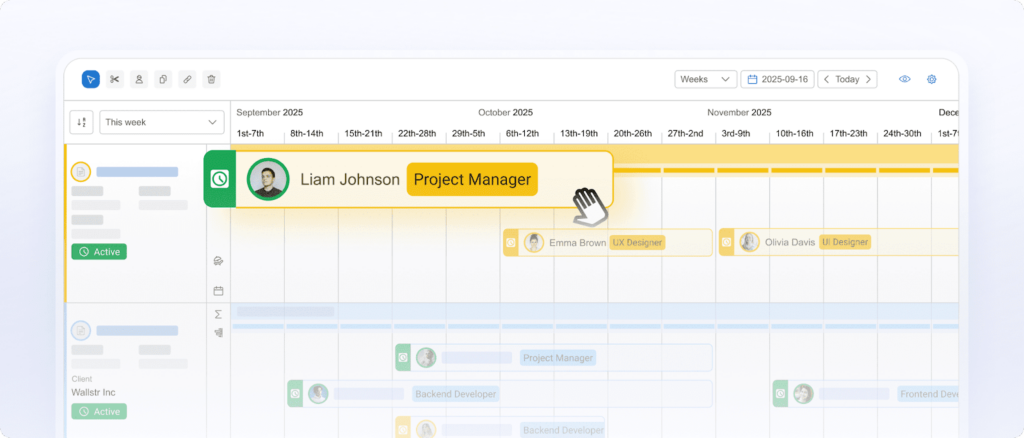
- A Gantt chart view that shows more than task bars. BigTime’s Gantt chart functionality includes critical path highlighting, milestone markers, and baseline vs. actual comparison, so you can see not just what’s scheduled, but what’s actually driving your delivery date and where the plan is drifting from reality.
- Dependencies that ripple through the whole schedule. When you move a task, BigTime updates dependent tasks and end dates automatically, so project managers aren’t manually reworking the chart every time a project change happens.
- Resource visibility built into the timeline, not bolted on. Because BigTime is built for professional services, staffing and utilization data sit next to the schedule. That means you can spot overbooked team members or capacity gaps directly from the Gantt chart view, before they turn into missed dates.
- A timeline you can trust at any zoom level. BigTime’s Gantt chart view holds up whether you’re looking at a two-week sprint or a multi-month engagement, which matters when you’re managing multiple projects and need both a day-to-day view and a portfolio-level one.
- Practical for teams that outgrow Microsoft Excel and Google Sheets. If you’ve been relying on free Gantt chart templates, BigTime is built to replace the static spreadsheet with an actively managed schedule that has real dependency logic and staffing context behind it.
Cons:
- Best fit is services delivery, not lightweight personal planning. If your only goal is a free Gantt chart maker for a simple timeline, BigTime can feel like more platform than you need (it’s meant for teams running real delivery operations).
BigTime’s Gantt chart functionality is built to hold up once real delivery starts, not just look good in a kickoff meeting. Where a lot of Gantt chart tools stop at drawing bars on a timeline, BigTime layers in the mechanics that make a chart trustworthy: critical path visibility so you know which tasks can’t slip, baseline comparison so you can see how far actuals have drifted from plan, and milestone markers so stakeholders can follow the shape of the project without needing every task explained.
For project managers, the practical win is that the chart stays accurate as work evolves. You can create Gantt charts that reflect true start and end dates, tie work together with task dependencies that update automatically, and keep a clear picture of project timelines across active engagements, all without rebuilding the schedule every time something shifts.
Where BigTime stands out from standalone chart software is what sits underneath the timeline. Because resource allocation and utilization live in the same system as the Gantt chart, you can catch a staffing conflict before it becomes a missed milestone, not after.
Key Features
- Gantt chart view for project scheduling — Create Gantt charts to visualize project timelines with start and end dates in a timeline format that supports active schedule management. It’s designed to help you keep the project schedule readable as projects evolve.
- Dependencies and interdependency visibility — Manage task dependencies so teams can see what’s blocked, what’s next, and what changes will ripple through end dates. This is critical when you need to link tasks and keep complex projects from drifting.
- Resource and capacity alignment — Support resource allocation decisions with visibility into staffing coverage, so you can allocate resources realistically and avoid overloading key roles. This helps workload management stay grounded in capacity instead of assumptions.
- Project visibility and reporting — Track project progress and project health with reporting designed for services delivery, including budget and performance visibility. Reviewers frequently call out reporting value, especially when leadership needs fast answers.
- Time tracking + billing workflow — Capture time consistently and support accurate billing, which is a major reason service teams standardize on BigTime. It reduces the “late timesheet” problem that creates downstream delays in invoicing and reporting.
Pricing
Capterra lists BigTime’s starting price at $20 per user, per month, with a free personalized demo available.

Microsoft Project (MS Project)
Reviews: G2: 4.0, Capterra: 4.4.
Pros & Cons
Pros:
- Strong scheduling engine for dependency-heavy plans. MS Project can handle detailed task dependencies, constraints, and structured project schedules that many lighter tools struggle with.
- Useful for formal planning and documentation. If your organization expects classic work breakdown structure rigor and “PMO-style” project plans, it can deliver that structure consistently.
Cons:
- A real learning curve (and it shows in day-to-day use). Many teams find it unintuitive at first, and updating plans after changes can feel harder than it should be.
- Collaboration feels dated compared to modern platforms. It’s not built around lightweight commenting, quick approvals, and easy cross-functional updates the way newer project management software is.
- Cost adds up quickly for teams. The subscription tiers can become expensive once you move beyond basic functionality and need desktop + advanced capabilities.
MS Project is still one of the most recognized names in Gantt chart project management software, mainly because it was built for traditional, schedule-driven project management. If your priority is tight control over start and end dates, dependency chains, and critical path logic, it’s capable. But that capability comes with tradeoffs: a heavier interface, more setup, and a higher barrier to adoption for everyday contributors who just want to update task progress and move on.
In practice, MS Project often works best when a trained project manager owns the schedule and the rest of the team feeds updates through a more controlled process. For teams that need fast collaboration features, quick edits, and simple ways to manage projects across multiple projects without overhead, it can feel like using a heavyweight system for work that changes every day.
Key Features
- Gantt chart view and timeline scheduling — Supports classic Gantt charts with granular control over task durations, due dates, and constraints, but it can feel rigid when project changes are frequent.
- Task dependencies and advanced relationships — Handles dependency logic well, which is useful for complex projects, but setting it up correctly takes experience.
- Critical path visibility — Helps identify critical tasks and understand what truly drives end dates, especially in structured project schedules.
- Resource management (tier-dependent) — More robust resourcing is typically tied to higher plans, which can limit usefulness for teams trying to balance workload management on a budget.
Pricing
Microsoft lists Planner Plan 1 at $10/user/month, Planner and Project Plan 3 at $30/user/month, and Planner and Project Plan 5 at $55/user/month (paid yearly), with trial options shown on the pricing page.
Smartsheet
Reviews: G2: 4.4, Capterra: 4.5.
Pros & Cons
Pros:
- Comfortable for spreadsheet-first teams. If your team lives in Microsoft Excel or Google Sheets, Smartsheet’s grid-first experience can feel familiar, which helps you stand up a project plan quickly without heavy onboarding.
- Solid visibility for basic Gantt charts and reporting. It can visualize project timelines, support task lists, and provide dashboards that make high-level project progress easier to communicate.
Cons:
- Gantt chart functionality can feel bolted onto a spreadsheet. It works, but it’s not “scheduler-grade” in the way dedicated Gantt software is, especially when you’re managing complex projects with lots of task dependencies.
- Dependencies come with tradeoffs that frustrate power users. When dependencies are enabled, Smartsheet restricts formulas in key columns like Start Date, End Date, Duration, % Complete, and Predecessors, which can be painful for teams that rely on spreadsheet-style logic.
- Critical path access is more limited than many expect. Only paid users with Owner/Admin permissions can enable dependencies to display the critical path, which creates friction if you want broader self-serve scheduling.
Smartsheet is best described as a spreadsheet-style work management platform that can also create Gantt charts. For teams moving off scattered spreadsheets, that can be an improvement: you get one place to assign tasks, share updates, and visualize project timelines in a Gantt chart view. The catch is that its strongest identity is still “grid + workflow,” so project scheduling can feel like something you configure rather than a capability that naturally drives execution.
Where Smartsheet tends to struggle is when the timeline becomes the system of record. With many task dependencies, frequent project changes, and too many tasks to manage manually, the scheduling experience can become brittle: enabling dependencies introduces rules and limitations (like formula restrictions) that can slow down teams who want both spreadsheet flexibility and true Gantt chart project management software behavior. It’s workable, but it often requires more process discipline than teams expect going in.
Key Features
- Gantt view alongside a grid — Lets you build a project schedule with start and end dates while keeping a spreadsheet-like table for editing and reporting. It’s convenient, but the Gantt experience is tightly tied to how your sheet is structured.
- Dependencies + predecessors — Supports task dependencies through predecessors and dependency settings, which can improve schedule accuracy for handoffs. However, enabling dependencies changes how certain columns behave, which can be limiting in real workflows.
- Critical path highlighting — Can display the critical path and update it automatically once dependencies are enabled, helping project managers identify critical tasks. The setup and permissions model can be restrictive for broader team use.
- Dashboards and reporting — Useful for project progress visibility and stakeholder reporting, especially across multiple projects. The quality of reporting often depends on how consistently the team maintains the underlying sheet structure.
Pricing
Smartsheet is commonly shown with a Pro entry at $9 per user/month and a free trial; Capterra also lists a starting price of $9 per user/month and notes free trial availability.
monday.com
Reviews: G2: 4.7, Capterra: 4.6.
Pros & Cons
Pros:
- Easy to roll out for cross-functional teams. monday.com is strong for organizing task lists, assigning owners, and keeping status visible without forcing everyone into a rigid PM process.
- Flexible views for day-to-day execution. Teams can switch between boards and Gantt-style timelines to visualize project timelines in a way that feels approachable for non-PMs.
- Good for “workflow + coordination” use cases. If your goal is to centralize updates, reduce spreadsheet sprawl, and coordinate work across departments, it can do the job.
Cons:
- Gantt depth is tier-gated. Gantt Chart view is available starting on the Standard plan, but milestone and critical path features are only available on Pro and Enterprise, which can turn “basic timeline” into an upgrade conversation fast.
- More visualization than scheduling engine. For dependency-heavy project schedules, monday.com’s Gantt chart functionality can feel like a view layered over work, rather than a robust scheduling system built around critical path logic.
- Can get messy as complexity grows. When there are too many tasks, boards and automations can become hard to govern consistently, which impacts reporting quality and project health visibility.
monday.com is a flexible project management tool that’s strongest when you treat it as a coordination hub: tasks, owners, statuses, and updates in one place. It’s friendly for teams that don’t want a heavyweight system, and it can help project managers keep projects moving with clear accountability and quick collaboration.
The tradeoff is that it’s not “Gantt-first” software. If you rely on deep task dependencies, frequent rescheduling, and critical path-driven planning, you may find the Gantt view useful for visibility but less convincing as the backbone of your project schedule. And because key Gantt capabilities (like critical path) sit behind higher tiers, the platform can get expensive once you need more than basic timeline reporting.
Key Features
- Gantt Chart view — Visualizes start and end dates on a timeline and can show dependency arrows between items, but advanced timeline controls are plan-dependent.
- Milestones + critical path (higher tiers) — Helpful for highlighting critical tasks, yet locked to Pro/Enterprise, which limits accessibility for broader teams.
- Boards, automations, and templates — Strong for standardizing workflows and reducing manual updates, though complexity can increase quickly as you scale boards and rules.
- Integrations ecosystem — Wide integration coverage can reduce context switching, but it doesn’t replace missing scheduling depth if your projects are dependency-driven.
Pricing
Capterra lists a starting price of $9 per user/month, and notes Free Trial and a Free Version.
Wrike
Reviews: G2: 4.2, Capterra: 4.4.
Pros & Cons
Pros:
- Capable Gantt chart view for structured scheduling. Wrike’s Gantt chart tool supports task dependencies and timeline editing, which helps when you need a more disciplined project schedule than a basic task list can offer.
- Solid governance for teams that need control. Permissions, approvals, and admin-friendly configuration can work well for organizations that want standardized project management workflows.
Cons:
- Steep learning curve and “busy” UX for many teams. Users frequently call out that the interface isn’t intuitive and that it takes time to learn, which slows adoption and makes day-to-day updates feel heavier than they should.
- It can become admin-dependent. Wrike often needs careful setup to keep reporting consistent and workspaces organized, especially once you’re managing complex projects or multiple projects.
- Pricing climbs quickly as you need advanced features. Wrike markets multiple tiers (plus higher-end plans with custom pricing), so “basic Gantt charts” can turn into “premium features required” once you scale.
Wrike is a broadly used project management software platform that includes a Gantt chart view, dependencies, and critical path visibility. If you’re trying to move beyond Microsoft Excel or Google Sheets and want a more controlled system to visualize project timelines, Wrike can cover the basics and then some—especially for teams that want structure and standardized processes.
The downside is that Wrike can feel like a “system you operate” rather than a tool that stays lightweight as work evolves. When there are too many tasks and frequent project changes, teams often struggle with usability and consistency unless an experienced owner manages configuration and hygiene. That makes it less appealing for organizations that want fast, self-serve scheduling without overhead.
Key Features
- Gantt chart view + timeline editing — Lets you create Gantt charts and adjust start and end dates while keeping the plan connected to tasks. It’s useful, but it can feel dense for casual users.
- Task dependencies with auto-rescheduling — Dependencies display as links on the chart, and when you reschedule a task, dependent active tasks can be automatically rescheduled. Great in theory, but it demands clean dependency setup to avoid confusion.
- Critical path highlighting — Wrike can show critical path tasks directly on the Gantt chart (with visual emphasis), which helps project managers identify critical tasks and protect end dates.
- Approvals and governance controls — Useful for teams that need review steps and structured workflows, though it adds process weight for smaller teams.
Pricing
Wrike lists multiple tiers and notes per-user monthly pricing billed annually; Capterra shows a starting price of $10/user/month and indicates free trial availability.
ClickUp
Reviews: G2: 4.7, Capterra: 4.6.
Pros & Cons
Pros:
- Flexible workspace for teams that want “everything in one place.” ClickUp combines task lists, docs, and multiple views (including Gantt view), which can reduce tool sprawl if your team commits to using it consistently.
- Strong value on paper with a usable free plan. For smaller teams, the Free Forever plan can be a practical starting point before you invest in deeper project management tooling.
- Gantt charts are available on paid tiers without steep entry pricing. The Unlimited plan includes “Unlimited Gantt Charts,” which makes it accessible compared to some competitors.
Cons:
- Overwhelming for many teams once you try to “do it all.” The depth is also the problem: setup can feel involved, and the learning curve is real if you want clean workflows instead of a cluttered workspace.
- Performance and organization can degrade with too many tasks. In larger or heavily customized workspaces, users commonly mention slowdowns and friction when navigating at scale.
- Paywalls show up quickly for serious planning. You can create timelines, but teams often hit tier limits when they need more structured scheduling, governance, and reporting.
ClickUp positions itself as an all-in-one project management tool, and it can work well if you’re willing to standardize your setup and enforce consistent usage. You can create Gantt charts, manage task dependencies, and visualize project timelines across projects in a single platform, which is appealing for teams trying to move beyond Microsoft Excel or Google Sheets.
The catch is that ClickUp is easy to start and harder to keep tidy. If your goal is dependable Gantt chart project management software for complex projects, the experience depends heavily on how well your workspace is configured and maintained. Without discipline, the same flexibility that makes ClickUp attractive can turn into noise that slows down planning and weakens project health visibility.
Key Features
- Gantt view (timeline planning) — Helps visualize project timelines and adjust dates in a Gantt chart view, but the quality of scheduling outcomes depends on how cleanly your tasks and dependencies are set up.
- Dependencies + linked work — Supports dependency tracking for task sequencing, but large dependency webs can become harder to manage as workspaces grow.
- Workload/Resource management (plan-dependent) — Workload management is listed in higher plans, which can matter if you need stronger resource allocation and capacity planning.
- Native time tracking (paid) — Native time tracking is included on Unlimited and above, but timesheets/reporting depth varies by how you configure your workflows.
Pricing
Free Forever is available; Unlimited is $7 per user/month (billed yearly) and Business is $12 per user/month (billed yearly); Enterprise is custom.
TeamGantt
Reviews: G2: 4.8, Capterra: 4.6.
Pros & Cons
Pros:
- Fast, clean Gantt chart creation. TeamGantt makes it easy to create Gantt charts with drag and drop edits, so you can get a project plan on a timeline quickly without fighting the UI.
- Straightforward dependency linking for simple schedules. You can link tasks and visualize task dependencies clearly, which is useful when you’re building a basic project schedule with obvious handoffs.
- Approachable for non-technical teams. If project managers want a tool that “feels lighter” than MS Project, TeamGantt is easier to adopt for everyday planning and updates.
Cons:
- Limited depth for complex projects. When you have too many tasks, frequent project changes, or you need more advanced scheduling logic, TeamGantt can start to feel like chart software that tops out before the work gets truly complicated.
- Resource management is not as robust as it looks. It supports viewing schedules by resource and filtering across projects, but it’s not the same as full workload management and capacity planning you’d expect in more operations-focused platforms.
- You may outgrow it if you need “project management software with Gantt chart” depth. It’s great for visualizing project timelines, but teams often need stronger reporting, governance, and end-to-end project management as delivery scales.
TeamGantt is a Gantt chart tool that does the basics well: it helps you create a Gantt chart quickly, set start and end dates, and keep a clear Gantt view of project timelines. For straightforward planning, it’s one of the easier ways to move beyond free Gantt chart templates in Microsoft Excel or Google Sheets and into a dedicated tool that still feels simple.
The drawback is that “simple” can become a ceiling. TeamGantt’s Gantt chart functionality is best when your schedule logic is clean and your dependency chains are manageable. As soon as you need deeper resource allocation controls, more advanced features for governance, or richer reporting to stay on top of project health across multiple projects, it can feel like you’re stretching a lightweight system to cover heavyweight needs.
Key Features
- Gantt chart view with drag and drop — Build and adjust a project schedule visually so project managers can plan projects and shift timelines without rebuilding the whole chart. It’s strong for clarity, but not designed for heavy scheduling complexity.
- Task dependencies + “fix invalid dependencies” — Link tasks with dependencies and resolve conflicts when dates break the logic, which helps keep project timelines coherent. It works well for simpler dependency networks, but doesn’t replace deeper critical path-driven scheduling tools.
- Resource view and filtering across projects — Open multiple projects and filter schedules by resource to support basic resource management and reduce obvious overbooking. It’s helpful, but it’s not full workload management for larger organizations.
- Templates for faster setup — Uses templates to speed up planning for new projects so you can get to a usable timeline quickly. This helps teams who want structure without starting from scratch.
Pricing
TeamGantt promotes project-based pricing and a free trial on its pricing page; Capterra lists a starting price of $24.95 per user/month and notes free trial availability.
Asana (Timeline)
Reviews: G2: 4.4, Capterra: 4.5.
Pros & Cons
Pros:
- Strong for everyday coordination, not just scheduling. Asana is easy for teams to adopt, which helps project managers keep task lists clean, assign tasks, and maintain project progress visibility without constant policing.
- Timeline supports dependency linking with simple interactions. You can set dependencies directly in Timeline by connecting tasks, which is helpful for visual sequencing when the project schedule is straightforward.
- Solid ecosystem and collaboration features. Comments, updates, and cross-team visibility are often the reason teams stick with Asana, even if they later need more “true Gantt” scheduling depth.
Cons:
- Not true Gantt software for scheduling-heavy work. Timeline is useful to visualize project timelines, but it’s not built to behave like a dedicated Gantt chart tool with rigorous scheduling logic and deeper critical path controls.
- Gantt-style planning is effectively paywalled. Teams evaluating a free plan should expect Timeline/Gantt-style functionality to be tied to paid tiers, which can be a blocker if you need Gantt chart functionality across a wider group.
- Can feel fragile for complex projects with lots of dependencies. When there are too many tasks and constant project changes, Timeline can become more “planning visualization” than a reliable scheduling engine you can lean on for end dates.
Asana is a strong project management platform for running day-to-day work, and its Timeline view can act like a Gantt chart view for teams that primarily need visibility. It’s a good fit when your priority is coordination: keep owners clear, keep work moving, and share a project plan that stakeholders can understand without training.
Where it falls short as Gantt chart project management software is depth. Asana can link tasks and shift dates, but it’s not designed to replace scheduling-first tools when you need rigorous dependency behavior, more advanced features around critical path analysis, or heavy-duty resource allocation logic. For project managers running complex projects, the Timeline is often “good enough” until it suddenly isn’t.
Key Features
- Timeline view (Gantt-style planning) — Visualizes start and end dates on a timeline so you can plan projects and communicate project timelines clearly. It works best when the schedule is moderate in complexity and you mainly need visibility.
- Task dependencies in Timeline — Lets you set dependencies by connecting tasks directly in the timeline, helping teams see sequencing at a glance. It’s practical, but it doesn’t behave like a strict scheduling engine for dependency-heavy plans.
- Date shifting options — Asana supports different dependency date shifting behaviors (for example, maintaining or consuming buffers), which helps teams manage project changes without manually reworking every downstream date.
- Collaboration + updates — Comments, status updates, and visibility features help teams track progress and reduce status chasing. This is where Asana tends to outperform many “pure chart software” options.
Pricing
Asana offers plan tiers from Personal (free) up through Starter, Advanced, Enterprise, and Enterprise+, with pricing details published on its pricing page (Timeline/Gantt-style planning is positioned as a paid capability).
Jira + Advanced Roadmaps
Reviews: G2: 4.3, Capterra: 4.2.
Pros & Cons
Pros:
- Strong for Agile teams that need cross-team visibility. Advanced Roadmaps (now “Plans” / advanced planning) can pull work from multiple Jira projects/boards into a single plan, which helps with big-picture coordination across teams.
- Good dependency awareness in a software delivery context. If your “tasks” are issues and your project plan lives inside Jira workflows, Plans can make those dependencies more visible for release planning.
Cons:
- Not a classic Gantt chart tool for most teams. It’s closer to “roadmapping in Jira” than a dedicated Gantt chart software experience for building a clean project schedule with stakeholder-friendly Gantt charts.
- Heavy setup and a real learning curve. Jira’s power comes with complexity, and Plans only works well when fields, workflows, and issue hygiene are consistent. Otherwise, timelines become noisy fast.
- Advanced planning is paywalled. Atlassian positions advanced planning/Advanced Roadmaps as available in Jira Premium and Enterprise, so teams on lower tiers won’t get the “Gantt-like” planning layer they’re expecting.
Jira + Advanced Roadmaps can work as Gantt chart project management software for software project management only if you already live in Jira and you’re comfortable treating issues as the core unit of planning. Plans can give project managers a portfolio-style timeline to visualize project timelines across teams, but it’s not designed to replace dedicated Gantt chart software for broader, mixed-work scenarios.
Where teams get frustrated is the mismatch between expectations and reality. If you want a clean Gantt view to plan projects, link tasks, and manage start and end dates with minimal overhead, Jira can feel like too much tool for the job. It’s powerful, but it asks you to earn the outcome through configuration, conventions, and ongoing maintenance.
Key Features
- Plans (Advanced Roadmaps) for cross-team scheduling — Build a consolidated plan that spans boards/projects and test scenarios before committing changes back to live work. Useful, but only as clean as your Jira data.
- Dependency-aware roadmapping — Helps visualize relationships between work items across teams for sequencing and release planning, but it’s not the same as classic Gantt chart functionality built for task-based schedules.
- Premium-tier advanced planning access — Advanced planning is included in Jira Premium/Enterprise, so it’s a tier decision, not a “turn it on anytime” feature.
- Agile execution foundation (boards, workflows, reporting) — Great for Scrum/Kanban execution, but can be overbuilt for non-Agile or non-software teams that just want a straightforward project schedule tool.
Pricing
Jira offers a Free tier (often used by small teams) and paid tiers where Premium is the on-ramp for Advanced Roadmaps/Plans. G2 lists Standard and Premium pricing ranges (e.g., Standard ~$7.53 and Premium ~$13.53 per user/month in its snapshot), but Atlassian pricing varies by plan and user count.
Zoho Projects
Reviews: G2: 4.3, Capterra: 4.5.
Pros & Cons
Pros:
- Good value for basic scheduling. Zoho Projects delivers usable Gantt charts, task lists, and time tracking at a price that’s hard to beat if you’re cost-sensitive.
- Critical path support exists (which is not a given at this price point). It can show critical path on the Gantt chart once tasks, durations, and dependencies are set.
Cons:
- Feels “SMB-first,” not enterprise-grade. It can handle a project schedule, but reporting polish and scale-readiness aren’t in the same league as higher-end platforms.
- Advanced capability can come with friction. Users and reviewers commonly mention a learning curve for advanced features and limitations that show up as you push beyond basics.
- Integrations outside Zoho can be a weak spot. It fits best if you already live in the Zoho ecosystem; otherwise, connecting “other tools” can take more effort than expected.
Zoho Projects is a budget-friendly option in the Gantt chart software project management space. It supports the fundamentals most teams want when they move beyond Microsoft Excel or Google Sheets: you can create Gantt charts, set dependencies, link tasks, and build a timeline that’s more structured than free Gantt chart templates.
The issue is depth. Zoho Projects can cover scheduling basics, but if you’re running complex projects with heavy resource allocation needs, strict governance, or high expectations for reporting and project health visibility, it can feel like a platform you outgrow. It’s a practical “good enough” tool until dependencies, workload management, and cross-team execution get serious.
Key Features
- Gantt chart view + dependencies — Build a project plan with start and end dates, then establish task dependencies so the schedule reflects real sequencing. Good for core planning, but less robust for advanced scheduling scenarios.
- Critical path visualization — Displays the critical path on the Gantt chart and helps identify critical tasks and slack time for non-critical activities. Useful, but it’s still a lighter-weight approach than scheduling-first tools.
- Time tracking — Tracks time against project tasks, which supports delivery reporting and basic performance visibility. It’s helpful, but reporting depth varies depending on how disciplined your team is with updates.
- Zoho ecosystem integrations — Works best when paired with Zoho apps (Books, CRM, etc.), but may require extra effort if your stack is outside Zoho.
Pricing
Zoho Projects offers a Free plan (free for 5 users) and paid plans; independent pricing summaries commonly cite paid tiers starting around $4/user/month (annual) and going up to around $9/user/month (annual), with monthly equivalents higher.
Which Gantt Chart Software Is the Best?
If you’re comparing pure Gantt tools, several options on this list will get the job done for basic scheduling. But if you run a professional services firm and need your gantt chart connected to staffing, time tracking, and delivery reporting, BigTime is the strongest fit in this list.
Most of the tools here can produce a clean gantt chart. Where they tend to fall short is dependency-heavy planning tied to real staffing data, reliable visibility into project progress, and the ability to allocate resources without guessing at capacity. BigTime’s Gantt functionality sits inside a broader PSA platform built for resource allocation, workload management, and delivery control, so your project plan stays usable even when project changes are constant.
If you want to see how BigTime fits your firm’s workflow, book a free personalized demo.
Gantt Chart Software: FAQ
What is a Gantt chart?
A Gantt chart is a timeline-based view of a project plan that displays project tasks as horizontal bars across dates. It shows start and end dates, duration, and sequencing, so teams can visualize project timelines, understand what happens when, and see how work fits together across the full project schedule.
What is a Gantt chart software?
Gantt chart software is a project planning and scheduling system that helps you create Gantt charts, manage task dependencies, and keep a project schedule accurate as work changes. Unlike static files (like Microsoft Excel, Google Sheets, or free Gantt chart templates), a dedicated Gantt chart tool typically supports dependency links, scheduling logic, progress updates, and collaboration features that help project managers track progress and manage projects in real time.
What is the best Gantt chart software?
BigTime is the best Gantt chart software for teams that need more than a visual timeline. It combines strong Gantt chart functionality with the operational controls that keep delivery realistic: resource allocation, workload management, time tracking, and clear visibility into project progress and project health. That matters most when you’re managing complex projects, juggling multiple projects, and trying to avoid costly delays caused by hidden dependencies or capacity gaps.
What is the best free Gantt chart tool?
There isn’t a “best” free Gantt chart tool that holds up for serious scheduling. Most free options (including free Gantt chart makers and free forever plans) come with the same predictable disadvantages:
- Weak dependency handling (limited ability to link tasks, set dependencies, or keep schedules logically consistent)
- No real critical path support (or critical path analysis is missing/locked behind premium features)
- Fragile reporting (hard to trust task progress and project progress when updates are inconsistent)
- Limited collaboration features (making it harder to monitor progress without status-chasing)
- Scaling pain (they break down fast with too many tasks, complex projects, or frequent project changes)
If you’re trying to run real delivery (not just draw bars), BigTime is a practical alternative because it’s built to keep Gantt view planning connected to execution, resourcing, and visibility—so your timeline stays accurate and usable beyond the initial plan.
What is the best Gantt chart software for project management?
BigTime is the best choice for project management because it treats the Gantt chart view as part of a complete system, not a standalone chart. You can plan projects, manage task dependencies, align resource management with the schedule, and track progress in a way that supports real decision-making when timelines shift. For project managers, that means fewer surprises, clearer accountability, and a project schedule that reflects reality.
What is the best Gantt chart for software development?
BigTime is the best Gantt chart option for software development when you need predictable delivery across competing priorities and shared resources. Software work often involves cross-team dependencies, shifting scope, and multiple workstreams, which makes timeline accuracy hard. BigTime’s Gantt chart project management software approach helps you keep sequencing visible, protect critical tasks, and maintain project progress visibility while balancing workload management across delivery teams.
What is the best Gantt chart for construction and engineering?
BigTime is the best Gantt chart solution for construction and engineering teams that need strong scheduling plus operational control. These projects typically depend on tight sequencing, high dependency density, and capacity constraints where one slip can create costly delays. BigTime supports a scheduling approach that helps project managers keep start and end dates clear, manage dependencies, and align resource allocation with what’s actually possible—so the project plan remains actionable as conditions change.